> ## Documentation Index
> Fetch the complete documentation index at: https://docs.nebuly.com/llms.txt
> Use this file to discover all available pages before exploring further.
# Conversations
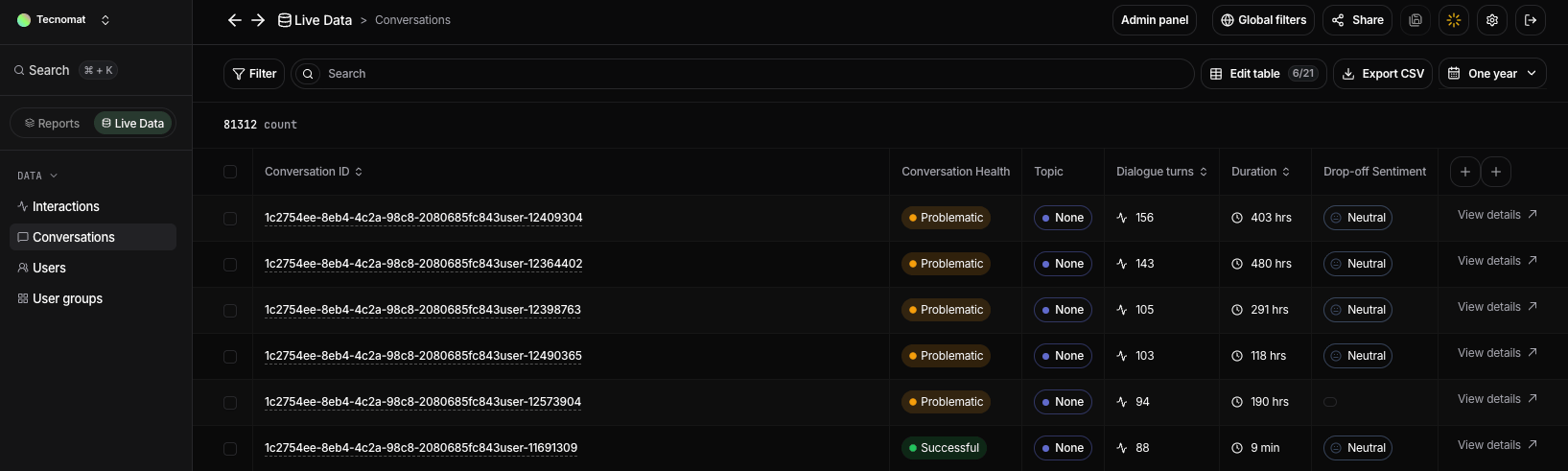
The **Conversations** page groups related interactions into complete conversation threads. Each row represents one conversation, allowing you to understand the full exchange between a user and your AI application instead of reviewing messages individually.
Use this page to investigate how conversations develop over time, identify where users encounter problems, and understand the outcome of each session.
 ## View conversation details
Select **View details** to open the complete conversation.
The details view lets you review every interaction in chronological order and understand how the user’s request developed across the thread. You can inspect the user’s messages, the assistant’s responses, and the properties associated with individual interactions.
This is useful when investigating problematic conversations, reviewing long user journeys, or understanding the context behind a specific interaction.
### Conversation details
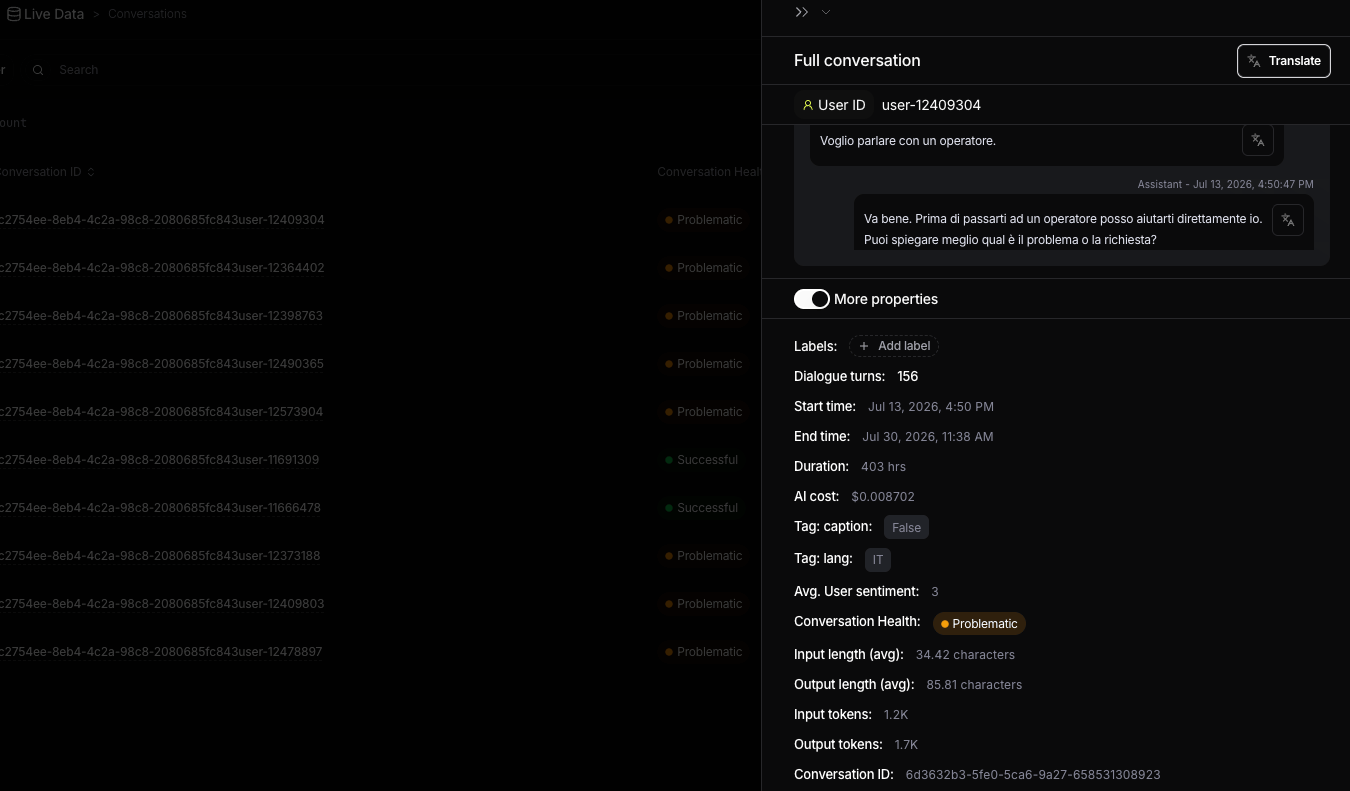
Select **View details** to open the conversation details panel.
The panel displays the complete conversation in chronological order, allowing you to review the full exchange between the user and your AI application without leaving the table. If the conversation is in a different language, you can use **Translate** to view it in your preferred language.
Expand **More properties** to see everything Nebuly knows about the conversation, so you can investigate it without leaving the panel. This includes:
* **Conversation timing:** the start time, end time, total duration, and number of interactions turns.
* **Health and sentiment:** the conversation health status and average user sentiment across the conversation.
* **Technical metrics:** total AI cost, average input and output length, and total input and output tokens.
* **Tags and metadata:** labels, language, custom tags, and other business context associated with the conversation.
* **Identifiers:** the user ID and conversation ID, which you can use to trace the conversation across your systems.
## View conversation details
Select **View details** to open the complete conversation.
The details view lets you review every interaction in chronological order and understand how the user’s request developed across the thread. You can inspect the user’s messages, the assistant’s responses, and the properties associated with individual interactions.
This is useful when investigating problematic conversations, reviewing long user journeys, or understanding the context behind a specific interaction.
### Conversation details
Select **View details** to open the conversation details panel.
The panel displays the complete conversation in chronological order, allowing you to review the full exchange between the user and your AI application without leaving the table. If the conversation is in a different language, you can use **Translate** to view it in your preferred language.
Expand **More properties** to see everything Nebuly knows about the conversation, so you can investigate it without leaving the panel. This includes:
* **Conversation timing:** the start time, end time, total duration, and number of interactions turns.
* **Health and sentiment:** the conversation health status and average user sentiment across the conversation.
* **Technical metrics:** total AI cost, average input and output length, and total input and output tokens.
* **Tags and metadata:** labels, language, custom tags, and other business context associated with the conversation.
* **Identifiers:** the user ID and conversation ID, which you can use to trace the conversation across your systems.
 ## Actions
### Manage Conversations
Select one or more conversations to perform bulk taxonomy actions directly from the table.
The available actions—**Move to**, **Create Topic**, **Create User Action**, and **Add label**—work the same way as described in the **Interactions** page. These actions let you reclassify conversations, create new taxonomy entities, or apply labels to multiple conversations at once, making it easier to organize and manage your data at scale. Read more [here](/guides/live-data/interactions).
### Filter and time range
Use **Filter** and the **time range selector** to narrow the conversations shown in the table. These controls work the same way across Live Data pages.
For details, read [here](/guides/platform/filters).
### Customize the table
Click **Edit Table** to choose which fields are displayed in the table. You can add or remove columns to focus on the user properties and metrics most relevant to your analysis.
### Export to CSV
Use **Export CSV** to download the conversations that match your current filters and search criteria.
The export can be used for offline analysis, sharing with stakeholders, or working with conversation data in spreadsheets and external analytics tools.
## Actions
### Manage Conversations
Select one or more conversations to perform bulk taxonomy actions directly from the table.
The available actions—**Move to**, **Create Topic**, **Create User Action**, and **Add label**—work the same way as described in the **Interactions** page. These actions let you reclassify conversations, create new taxonomy entities, or apply labels to multiple conversations at once, making it easier to organize and manage your data at scale. Read more [here](/guides/live-data/interactions).
### Filter and time range
Use **Filter** and the **time range selector** to narrow the conversations shown in the table. These controls work the same way across Live Data pages.
For details, read [here](/guides/platform/filters).
### Customize the table
Click **Edit Table** to choose which fields are displayed in the table. You can add or remove columns to focus on the user properties and metrics most relevant to your analysis.
### Export to CSV
Use **Export CSV** to download the conversations that match your current filters and search criteria.
The export can be used for offline analysis, sharing with stakeholders, or working with conversation data in spreadsheets and external analytics tools.