> ## Documentation Index
> Fetch the complete documentation index at: https://docs.nebuly.com/llms.txt
> Use this file to discover all available pages before exploring further.
# Nebuly MCP Server
> Connect AI assistants to Nebuly analytics through the Model Context Protocol
The Nebuly MCP Server lets AI assistants query Nebuly data through the [Model Context Protocol](https://modelcontextprotocol.io/).
Use it to ask questions about interactions, conversations and aggregated data, to build and update reports and charts, or to export interaction CSV files without leaving your assistant.
The Nebuly MCP Server is currently in beta and available to all SaaS users and self-hosted customers.
SaaS users can connect directly using `https://mcp.nebuly.com/mcp`.
Self-hosted customers should use the URL provided by the Nebuly team.
# Prerequisites
Before you configure the integration, make sure you have:
* A Nebuly account with MCP access (all SaaS users, or a self-hosted environment with MCP beta enabled).
* Your Nebuly MCP server URL, shown below as ``. SaaS users should use `https://mcp.nebuly.com/mcp`.
* One of the supported MCP clients: Claude Desktop, Claude Code, or Cursor.
# Configure your MCP client
Detailed instructions for adding the Nebuly MCP server to Claude Desktop can be found in the [Claude Desktop documentation](https://support.claude.com/en/articles/11175166-get-started-with-custom-connectors-using-remote-mcp).
This typically requires organization-level configuration, so please reach out to your Claude administrator if you don't have access to the settings described in the documentation.
Installing MCP servers in Claude Code requires the [Claude CLI](https://code.claude.com/docs/en/quickstart/) installed.
Add the Nebuly MCP server from your terminal:
```bash theme={null}
claude mcp add --scope user --transport http nebuly-mcp
```
Verify the server is available:
```bash theme={null}
claude mcp list
```
Other relevant instructions for managing MCP servers in Claude Code can be found in the [Claude Code documentation](https://code.claude.com/docs/en/mcp).
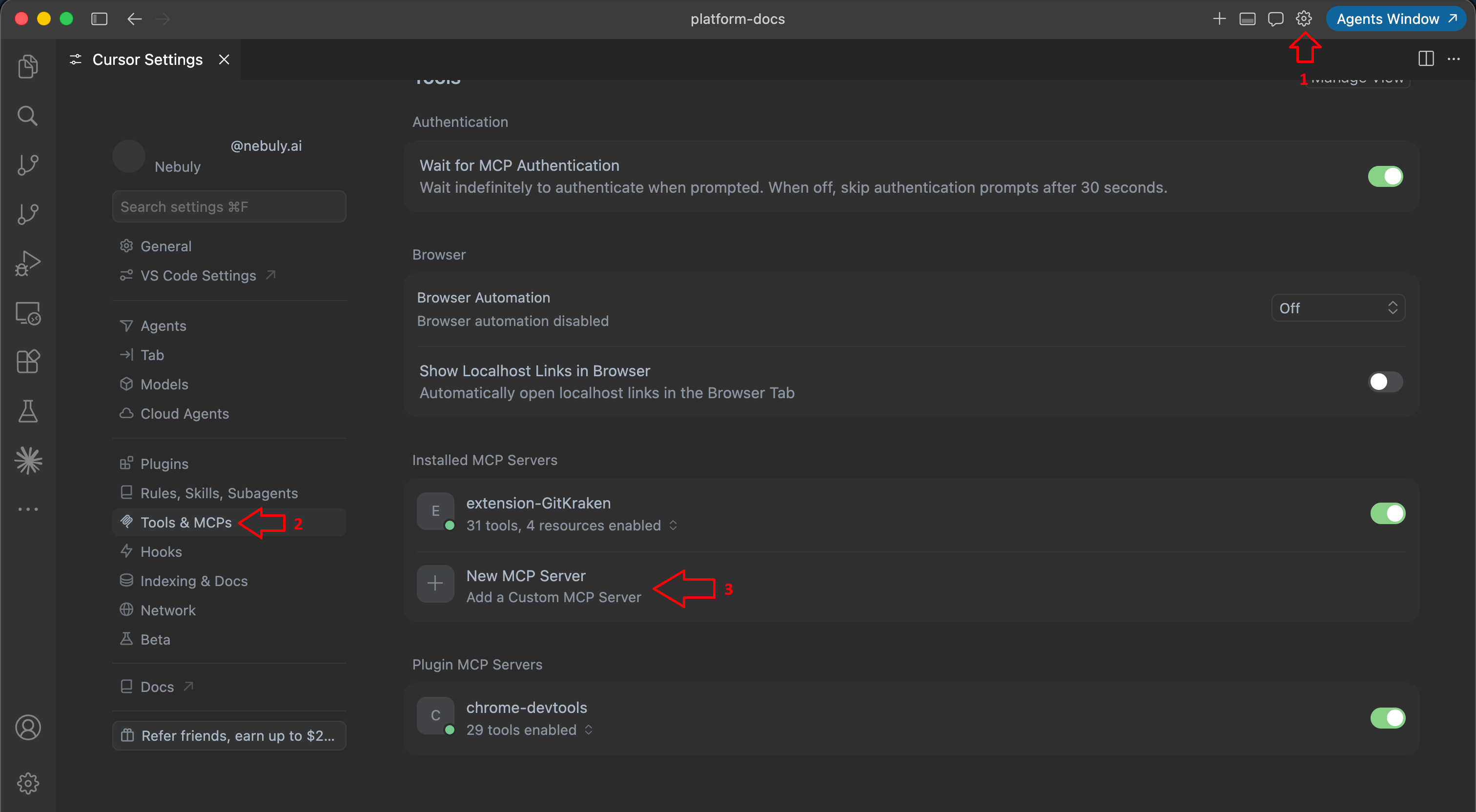
Create or update your Cursor MCP configuration, in cursor select Settings (gear icon) → Tool & MCPs → New MCP Server:
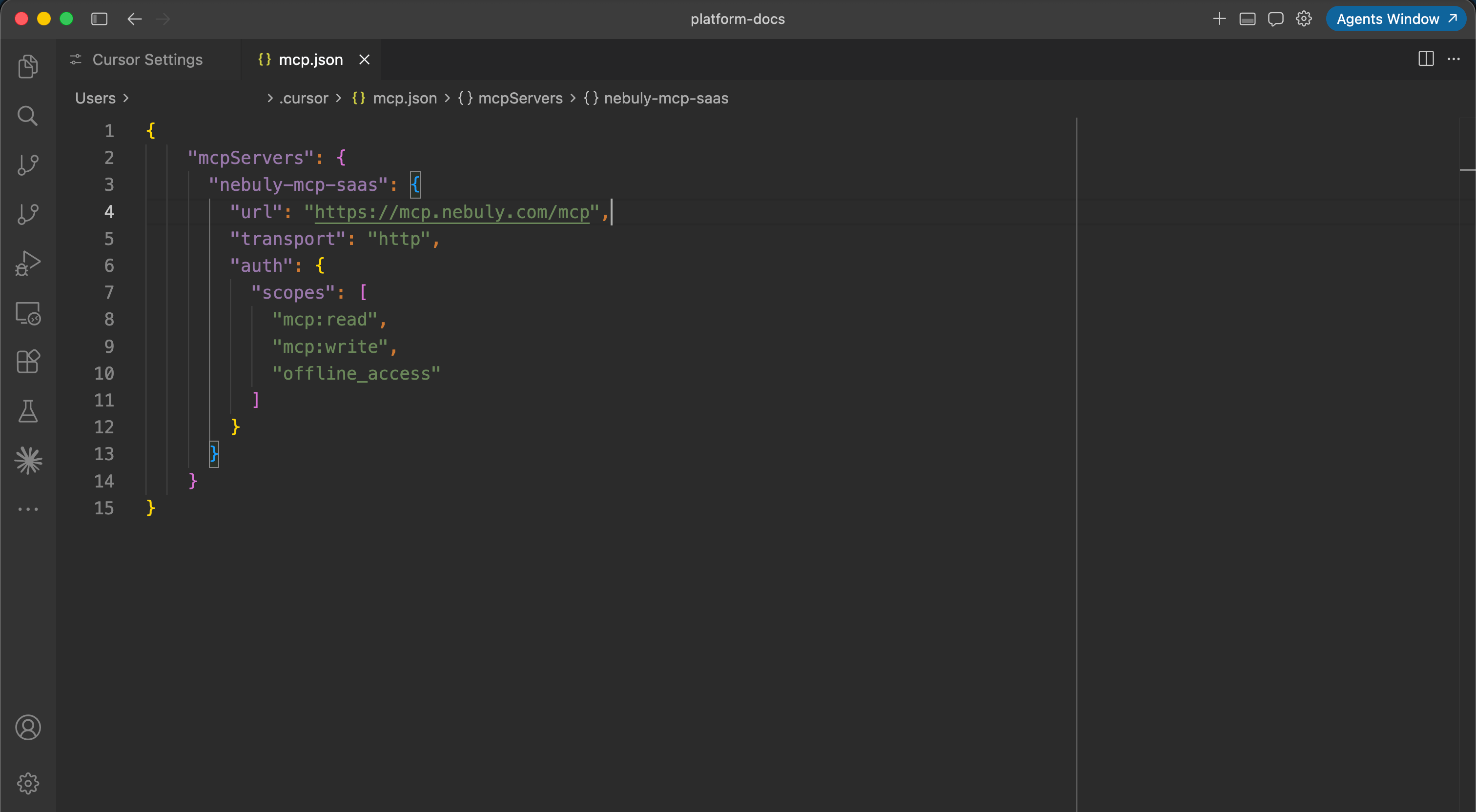
 Setup your mcp server with the following schema:
```json theme={null}
{
"mcpServers": {
"nebuly-mcp": {
"url": "",
"auth": {
"scopes": ["mcp:read", "mcp:write", "offline_access"]
}
}
}
}
```
Setup your mcp server with the following schema:
```json theme={null}
{
"mcpServers": {
"nebuly-mcp": {
"url": "",
"auth": {
"scopes": ["mcp:read", "mcp:write", "offline_access"]
}
}
}
}
```
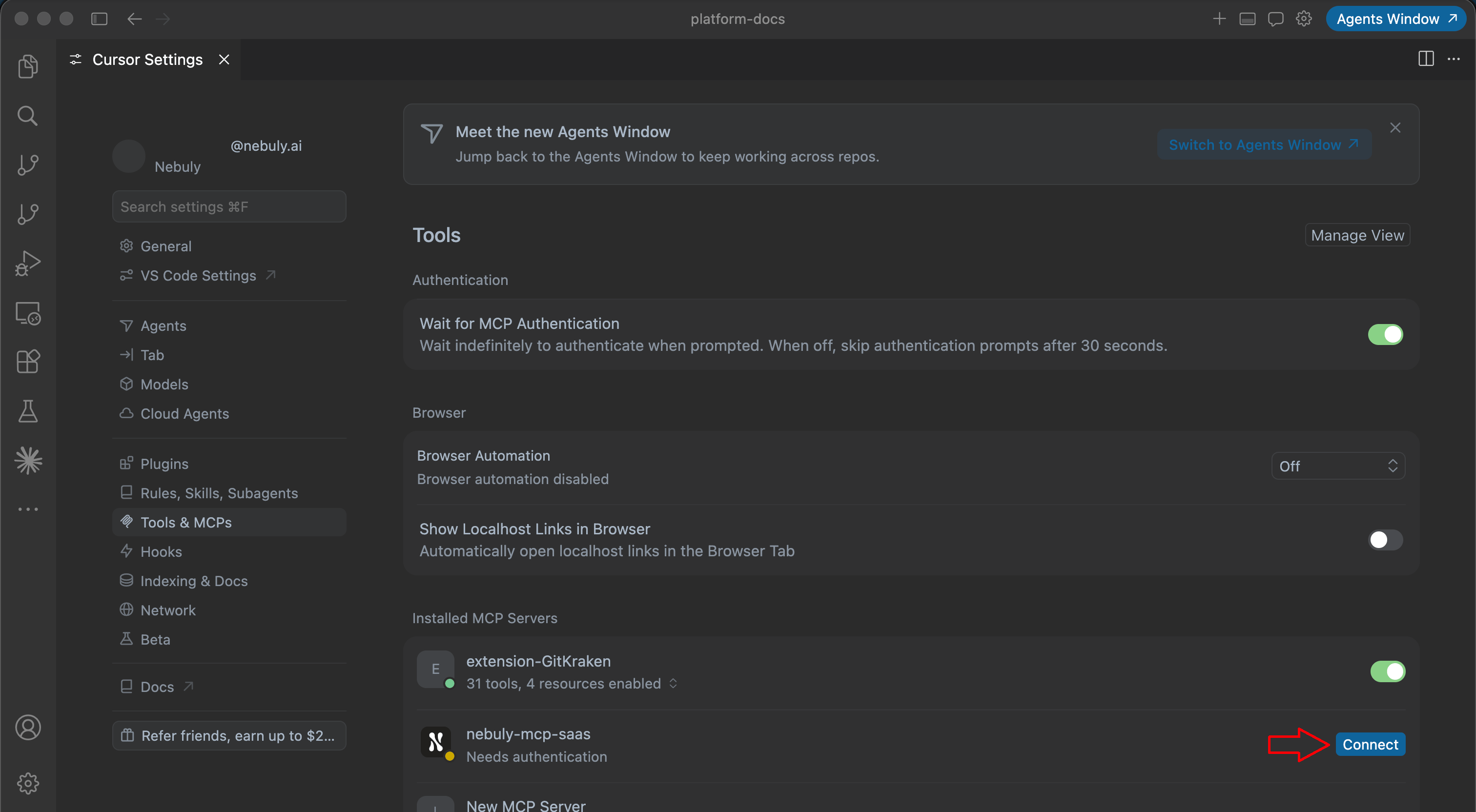
 Finally, return to Settings and click connect:
 Currently we only support per-user cursor configuration. Team level MCPs or Marketplace plugins are not supported.
Other relevant instructions for managing MCP servers in Cursor can be found in the [Cursor documentation](https://cursor.com/docs/mcp).
# MCP Overview
## Example usage
After defining a project to work with, your assistant can answer a wide variety of
questions about your Nebuly data.
```text theme={null}
Hey assistant, I want to use Nebuly MCP server!
We will work on the Production project, London timezone.
```
Not all agents have access to your current position, to ensure the same results shown in the Nebuly UI provide
your location/timezone in the conversation.
Try asking your MCP-enabled assistant:
* "List the Nebuly projects I can access."
* "Show me the top 10 topics by interaction volume over the last 30 days."
* "Show me a chart of negative-sentiment interactions by topic and user intent for the last two weeks."
* "Show daily interaction volume and error-rate trends for the last quarter."
* "Which topics have the highest average latency this month?"
* "List the reports in the project."
* "Create a report called 'Monthly Quality' and add a line chart of daily interaction volume for the last 30 days."
* "Add a pie chart of interactions by topic for last month to my 'Monthly Quality' report."
* "Export January interactions with timestamp, user, input, output, topic, sentiment, and cost."
## Available tools
### Interactions and conversations
* `list_projects`: List the Nebuly projects your assistant can access.
* `get_interactions`: Query interactions in a project with filters. Results will be paginated and limited, this tool is designed for browsing and inspecting small sets of interactions, not for bulk data retrieval.
* `get_interaction_details`: Retrieve the full record for a single interaction, based on an interaction ID.
* `get_conversation_detail`: Fetch the full conversation history based on a conversation ID.
### Analytics
* `get_interaction_aggregates`: Group interactions by one dimension, such as topic, sentiment, user intent, language, feedback, risk type, or custom fields.
* `get_interaction_multi_aggregates`: Break down interactions across multiple dimensions, such as topic by sentiment or intent by feedback.
* `get_interaction_time_series`: Build trends over time with minute, hour, day, week, month, or year buckets.
* `get_interaction_query_options`: Used by agents to discover how to filter and group interactions.
The analytics tool gets best result when used from assistants that can handle tabular data and charts, such as Claude Desktop or Cursor.
### Reports and charts
* `list_reports`: List the reports in a project.
* `get_report`: Fetch a single report with its full configuration and charts.
* `create_report`: Create a new report in a project.
* `update_report`: Update an existing report's metadata or favorite status.
* `create_analytics_chart`: Add an analytics chart to a report.
* `update_analytics_chart`: Update an existing analytics chart.
* `create_table_chart`: Add a table chart to a report.
* `update_table_chart`: Update an existing table chart.
* `get_chart_builder_options`: Used by agents to discover how to build charts.
* `get_filter_values`: Used by agents to discover the distinct selectable values for a given chart filter.
* `get_filter_definition`: Used by agents to discover specific details about a chart filter.
Currently the MCP server supports the following chart types:
* Time series
* Horizontal bar chart
* Stacked time series
* Metric
* Time series distribution
* Scatter plot
* Pie
* Table
### Exports
* `get_interactions_csv`: Start an async CSV export for a filtered set of interactions.
By default the export will include timestamp, input and output. You can ask your assistant to include additional fields such as user, topic, sentiment or cost.
* `get_csv_export_status`: The agent will use this to check the status of a running export job. Returns `pending`, `running`, `completed`, or `failed` with a progress percentage.
* `prepare_csv_download`: The agent will use this to obtain a time-limited download URL. The URL expires after 5 minutes.
Currently we only support per-user cursor configuration. Team level MCPs or Marketplace plugins are not supported.
Other relevant instructions for managing MCP servers in Cursor can be found in the [Cursor documentation](https://cursor.com/docs/mcp).
# MCP Overview
## Example usage
After defining a project to work with, your assistant can answer a wide variety of
questions about your Nebuly data.
```text theme={null}
Hey assistant, I want to use Nebuly MCP server!
We will work on the Production project, London timezone.
```
Not all agents have access to your current position, to ensure the same results shown in the Nebuly UI provide
your location/timezone in the conversation.
Try asking your MCP-enabled assistant:
* "List the Nebuly projects I can access."
* "Show me the top 10 topics by interaction volume over the last 30 days."
* "Show me a chart of negative-sentiment interactions by topic and user intent for the last two weeks."
* "Show daily interaction volume and error-rate trends for the last quarter."
* "Which topics have the highest average latency this month?"
* "List the reports in the project."
* "Create a report called 'Monthly Quality' and add a line chart of daily interaction volume for the last 30 days."
* "Add a pie chart of interactions by topic for last month to my 'Monthly Quality' report."
* "Export January interactions with timestamp, user, input, output, topic, sentiment, and cost."
## Available tools
### Interactions and conversations
* `list_projects`: List the Nebuly projects your assistant can access.
* `get_interactions`: Query interactions in a project with filters. Results will be paginated and limited, this tool is designed for browsing and inspecting small sets of interactions, not for bulk data retrieval.
* `get_interaction_details`: Retrieve the full record for a single interaction, based on an interaction ID.
* `get_conversation_detail`: Fetch the full conversation history based on a conversation ID.
### Analytics
* `get_interaction_aggregates`: Group interactions by one dimension, such as topic, sentiment, user intent, language, feedback, risk type, or custom fields.
* `get_interaction_multi_aggregates`: Break down interactions across multiple dimensions, such as topic by sentiment or intent by feedback.
* `get_interaction_time_series`: Build trends over time with minute, hour, day, week, month, or year buckets.
* `get_interaction_query_options`: Used by agents to discover how to filter and group interactions.
The analytics tool gets best result when used from assistants that can handle tabular data and charts, such as Claude Desktop or Cursor.
### Reports and charts
* `list_reports`: List the reports in a project.
* `get_report`: Fetch a single report with its full configuration and charts.
* `create_report`: Create a new report in a project.
* `update_report`: Update an existing report's metadata or favorite status.
* `create_analytics_chart`: Add an analytics chart to a report.
* `update_analytics_chart`: Update an existing analytics chart.
* `create_table_chart`: Add a table chart to a report.
* `update_table_chart`: Update an existing table chart.
* `get_chart_builder_options`: Used by agents to discover how to build charts.
* `get_filter_values`: Used by agents to discover the distinct selectable values for a given chart filter.
* `get_filter_definition`: Used by agents to discover specific details about a chart filter.
Currently the MCP server supports the following chart types:
* Time series
* Horizontal bar chart
* Stacked time series
* Metric
* Time series distribution
* Scatter plot
* Pie
* Table
### Exports
* `get_interactions_csv`: Start an async CSV export for a filtered set of interactions.
By default the export will include timestamp, input and output. You can ask your assistant to include additional fields such as user, topic, sentiment or cost.
* `get_csv_export_status`: The agent will use this to check the status of a running export job. Returns `pending`, `running`, `completed`, or `failed` with a progress percentage.
* `prepare_csv_download`: The agent will use this to obtain a time-limited download URL. The URL expires after 5 minutes.