> ## Documentation Index
> Fetch the complete documentation index at: https://docs.nebuly.com/llms.txt
> Use this file to discover all available pages before exploring further.
# Members
The **Members** page lets administrators manage who can access Nebuly and define what each user is allowed to do.
Access to projects is managed independently from user roles, allowing organizations to control both **what users can do** and **which projects they can access**.
## View members
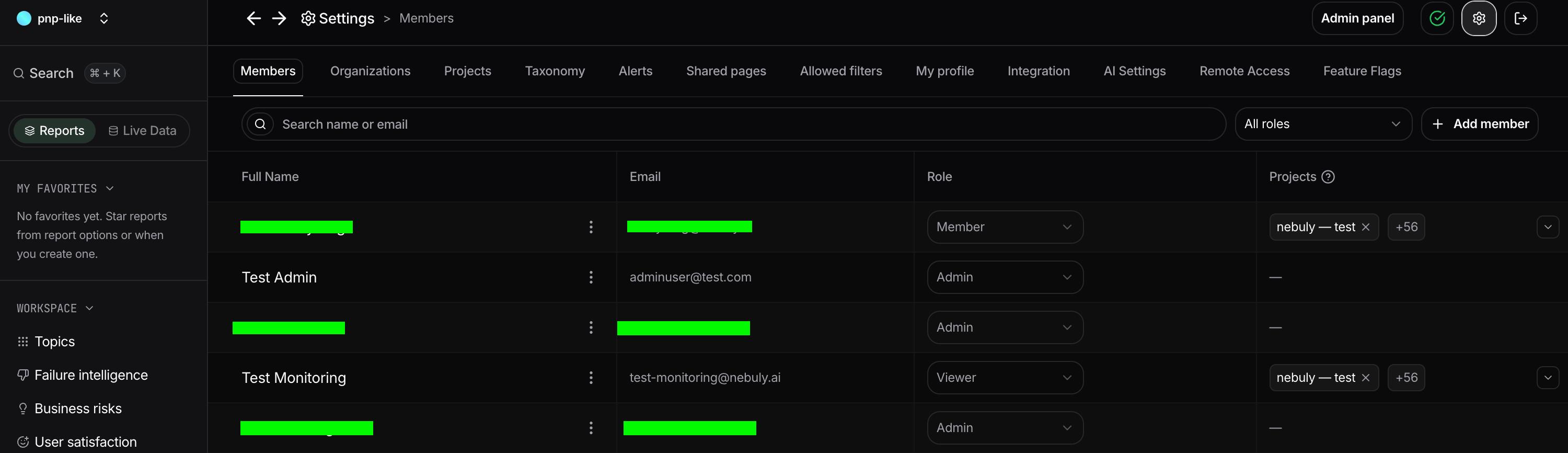
The **Members** page provides an overview of everyone who has access to your Nebuly organization. Use the search bar to quickly find members by name or email, or filter the list by role to easily review permissions across your organization. This view provides a centralized place to audit user access and verify that each team member has the appropriate level of permissions.
 ## Inviting members
To invite a new user, click **Add member** in the top-right corner.
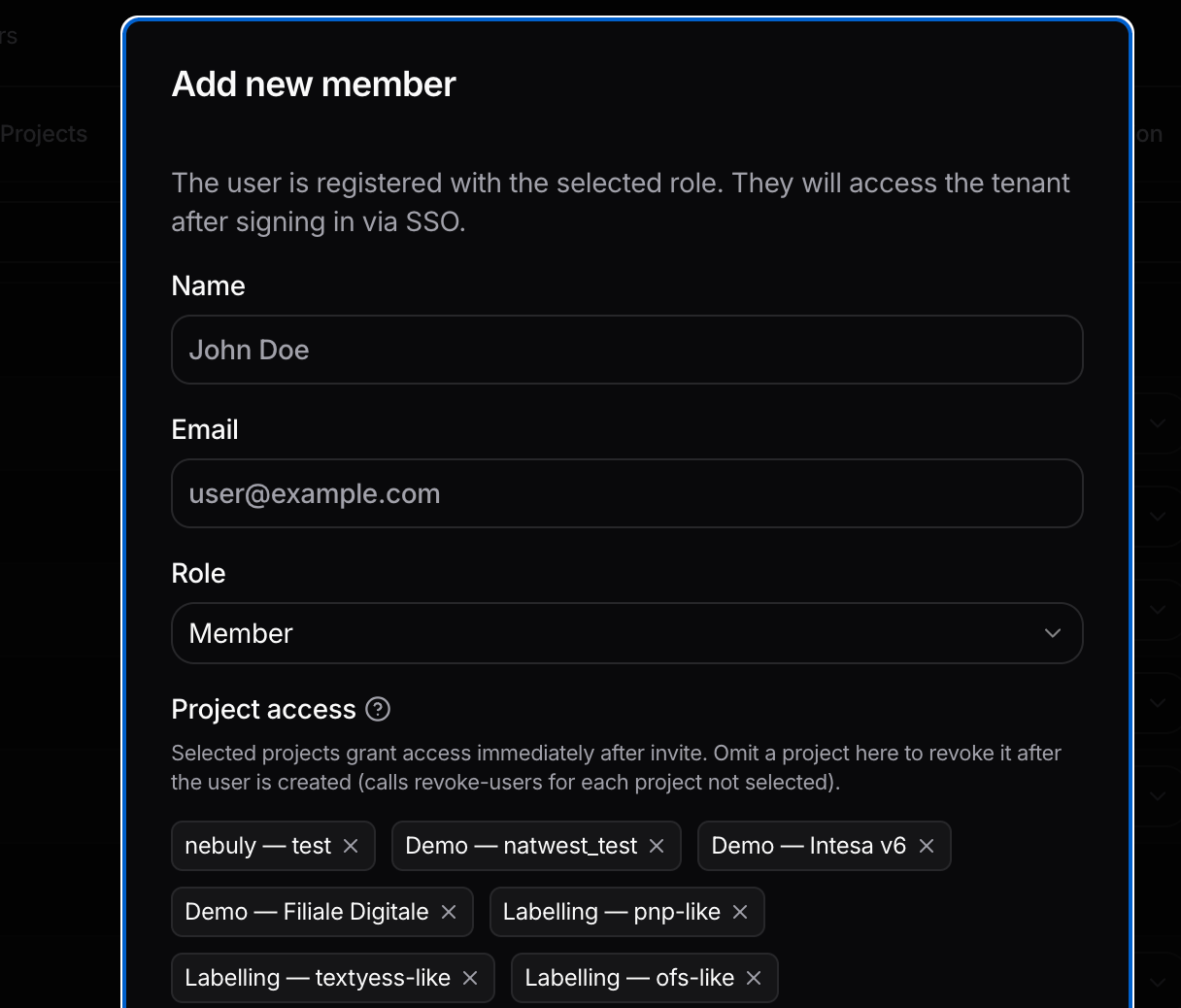
After entering the user's email address, assign an initial name and role and select the projects they should have access to. The user will receive an invitation to join your Nebuly organization.
At least one project must be selected for an organization
## Inviting members
To invite a new user, click **Add member** in the top-right corner.
After entering the user's email address, assign an initial name and role and select the projects they should have access to. The user will receive an invitation to join your Nebuly organization.
At least one project must be selected for an organization
 ## Roles
Nebuly provides four roles with different levels of access.
#### Viewer
Viewers have read-only access to the platform.
They can:
* View reports and dashboards.
* Browse Live Data.
* Explore conversations, interactions, and users.
* Apply localfilters and perform searches.
They cannot modify reports, settings, taxonomies, or organization configuration.
#### Member
Members can use Nebuly to analyze data and create their own workspaces.
In addition to Viewer permissions, they can:
* Create and edit reports.
* Create charts and dashboards.
* Save filters and templates.
* Manage their own reports and personal workspace.
Members cannot manage users, projects, or organization settings.
#### Project Admin
Project Admins manage one or more specific projects without receiving full administrative access to the organization.
In addition to Member permissions, they can:
* Configure project settings.
* Manage project-specific resources, such as taxonomies and alerts.
* Administer users within the projects they manage.
Project Admins only have administrative privileges for the projects assigned to them.
#### Admin
Admins have full access to the organization.
They can:
* Manage members and roles.
* Create and configure Organizations and Projects.
* Configure integrations and AI settings.
* Manage taxonomies, alerts, shared pages, and feature flags.
* Access all projects within the organization.
Admins have unrestricted access to all administrative features in Nebuly.
| Permission | Viewer | Member | Project Admin | Admin |
| :------------------------------------- | :----- | :----- | :------------ | :---- |
| View reports and dashboards | ✅ | ✅ | ✅ | ✅ |
| Browse Live Data | ✅ | ✅ | ✅ | ✅ |
| Search and filter data | ✅ | ✅ | ✅ | ✅ |
| Create and edit reports | ❌ | ✅ | ✅ | ✅ |
| Create and edit charts | ❌ | ✅ | ✅ | ✅ |
| Save filters and templates | ❌ | ✅ | ✅ | ✅ |
| Manage own reports | ❌ | ✅ | ✅ | ✅ |
| Configure project settings | ❌ | ❌ | ✅ | ✅ |
| Manage project taxonomies and alerts | ❌ | ❌ | ✅ | ✅ |
| Manage project members | ❌ | ❌ | ✅\* | ✅ |
| Create and manage projects | ❌ | ❌ | ❌ | ✅ |
| Manage organization settings | ❌ | ❌ | ❌ | ✅ |
| Invite and manage members | ❌ | ❌ | ❌ | ✅ |
| Configure integrations and AI settings | ❌ | ❌ | ❌ | ✅ |
\* **Project Admins** can manage members and settings only for the projects they administer.
## Project access
Roles determine **what actions a user can perform**, while project assignments determine **which data they can access**.
Users can be granted access to one or more projects directly from the **Projects** column. This makes it possible to restrict visibility so that users only see the AI products or business areas relevant to their work.
For example, a user may have the **Member** role but only be able to access the **Customer Support Assistant** project, while another Member has access to both **Customer Support** and **Sales Copilot**.
This combination of roles and project assignments provides flexible access control for organizations managing multiple AI applications.
## Roles
Nebuly provides four roles with different levels of access.
#### Viewer
Viewers have read-only access to the platform.
They can:
* View reports and dashboards.
* Browse Live Data.
* Explore conversations, interactions, and users.
* Apply localfilters and perform searches.
They cannot modify reports, settings, taxonomies, or organization configuration.
#### Member
Members can use Nebuly to analyze data and create their own workspaces.
In addition to Viewer permissions, they can:
* Create and edit reports.
* Create charts and dashboards.
* Save filters and templates.
* Manage their own reports and personal workspace.
Members cannot manage users, projects, or organization settings.
#### Project Admin
Project Admins manage one or more specific projects without receiving full administrative access to the organization.
In addition to Member permissions, they can:
* Configure project settings.
* Manage project-specific resources, such as taxonomies and alerts.
* Administer users within the projects they manage.
Project Admins only have administrative privileges for the projects assigned to them.
#### Admin
Admins have full access to the organization.
They can:
* Manage members and roles.
* Create and configure Organizations and Projects.
* Configure integrations and AI settings.
* Manage taxonomies, alerts, shared pages, and feature flags.
* Access all projects within the organization.
Admins have unrestricted access to all administrative features in Nebuly.
| Permission | Viewer | Member | Project Admin | Admin |
| :------------------------------------- | :----- | :----- | :------------ | :---- |
| View reports and dashboards | ✅ | ✅ | ✅ | ✅ |
| Browse Live Data | ✅ | ✅ | ✅ | ✅ |
| Search and filter data | ✅ | ✅ | ✅ | ✅ |
| Create and edit reports | ❌ | ✅ | ✅ | ✅ |
| Create and edit charts | ❌ | ✅ | ✅ | ✅ |
| Save filters and templates | ❌ | ✅ | ✅ | ✅ |
| Manage own reports | ❌ | ✅ | ✅ | ✅ |
| Configure project settings | ❌ | ❌ | ✅ | ✅ |
| Manage project taxonomies and alerts | ❌ | ❌ | ✅ | ✅ |
| Manage project members | ❌ | ❌ | ✅\* | ✅ |
| Create and manage projects | ❌ | ❌ | ❌ | ✅ |
| Manage organization settings | ❌ | ❌ | ❌ | ✅ |
| Invite and manage members | ❌ | ❌ | ❌ | ✅ |
| Configure integrations and AI settings | ❌ | ❌ | ❌ | ✅ |
\* **Project Admins** can manage members and settings only for the projects they administer.
## Project access
Roles determine **what actions a user can perform**, while project assignments determine **which data they can access**.
Users can be granted access to one or more projects directly from the **Projects** column. This makes it possible to restrict visibility so that users only see the AI products or business areas relevant to their work.
For example, a user may have the **Member** role but only be able to access the **Customer Support Assistant** project, while another Member has access to both **Customer Support** and **Sales Copilot**.
This combination of roles and project assignments provides flexible access control for organizations managing multiple AI applications.