> ## Documentation Index
> Fetch the complete documentation index at: https://docs.nebuly.com/llms.txt
> Use this file to discover all available pages before exploring further.
# Sharing pages in Nebuly
> Share interactions, conversations, and other surfaces in Nebuly with stakeholders, directly in the platform or by exporting.
Beyond reports, several other surfaces in Nebuly can be shared with stakeholders, directly in the platform or by exporting insights for use elsewhere. To share a full report externally, see [Reports → External sharing](/guides/reports-guide).
## Sharing interactions and conversations
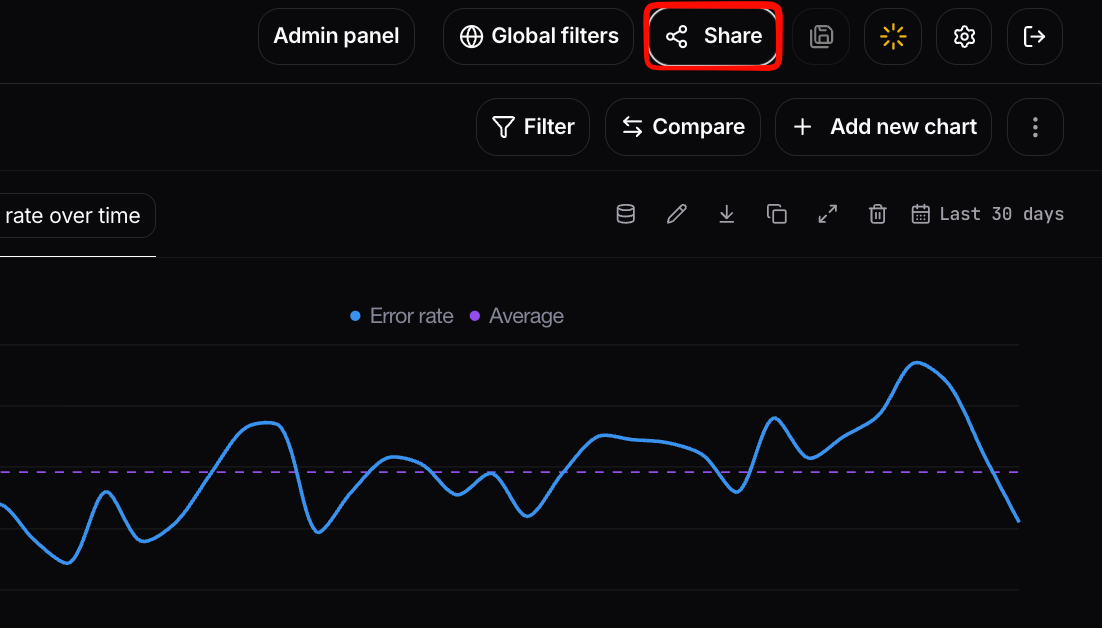
You can generate a link to a single **conversation** or **interaction** to share with colleagues and external users, without giving them a seat in Nebuly. Open the page you want to share and use the **Share** button in the top right of the screen to create the link.
The link gives the recipient access to that page without requiring them to log in to Nebuly, the same anonymous-link mechanism used for reports, scoped to the single page you are viewing.
 ## Configuring a share link
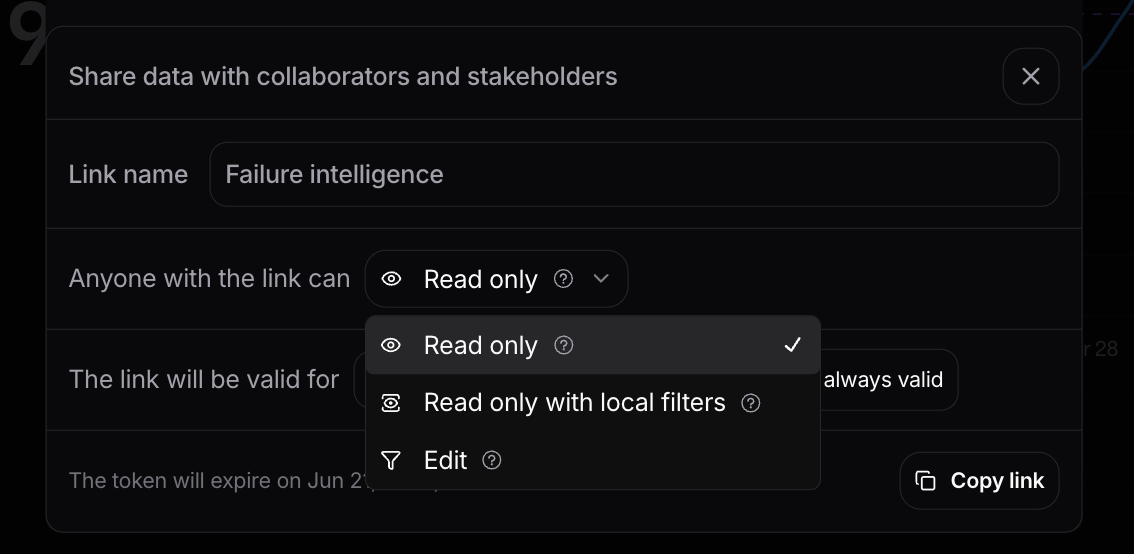
When you share a page externally you can configure the same controls available for reports:
* **Read-only access:** the recipient can view the page but cannot make any changes.
* **Time-limited access:** set an expiration on the link so it stops working after a chosen date.
* **Scope enforcement:** the link only ever exposes the page you shared. Project-level filters and permissions are enforced, so data outside that scope is never revealed to the recipient.
This is the recommended way to communicate a specific finding (a notable conversation, a failure example, a representative interaction) to a wider audience without granting them seats in Nebuly.
## Configuring a share link
When you share a page externally you can configure the same controls available for reports:
* **Read-only access:** the recipient can view the page but cannot make any changes.
* **Time-limited access:** set an expiration on the link so it stops working after a chosen date.
* **Scope enforcement:** the link only ever exposes the page you shared. Project-level filters and permissions are enforced, so data outside that scope is never revealed to the recipient.
This is the recommended way to communicate a specific finding (a notable conversation, a failure example, a representative interaction) to a wider audience without granting them seats in Nebuly.
 ## Unsharing a page
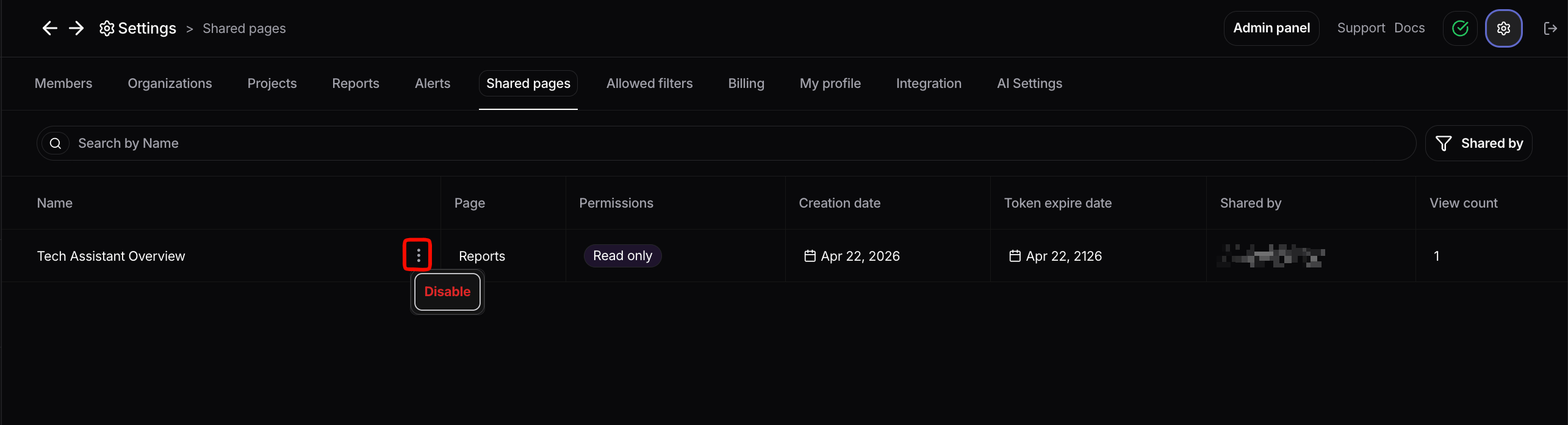
To revoke a previously shared page, go to **Settings → Shared pages**. This tab lists every shared page with its **Name**, the **Page** type (for example, Reports), **Permissions** (such as Read only), **Creation date**, **Token expire date**, **Shared by**, and **View count**.
Find the page you want to revoke, click the three-dot menu next to its name, and select **Disable**. This invalidates the share link so the recipient can no longer access the page.
Only **admins** can unshare pages.
## Unsharing a page
To revoke a previously shared page, go to **Settings → Shared pages**. This tab lists every shared page with its **Name**, the **Page** type (for example, Reports), **Permissions** (such as Read only), **Creation date**, **Token expire date**, **Shared by**, and **View count**.
Find the page you want to revoke, click the three-dot menu next to its name, and select **Disable**. This invalidates the share link so the recipient can no longer access the page.
Only **admins** can unshare pages.
 ## Exporting data
For sharing the underlying data rather than a live page, **Live Data** tables can be exported to **CSV**. See [Navigating Nebuly → Table views](/guides/navigating-nebuly) for how to add columns and export, and the [Nebuly MCP Server](/guides/mcp-server) for custom analytics and research done by your AI agent of choice.
## Sharing full reports
To share an entire report (with read-only or edit permissions, time-limited access, and project-based filters), see [Reports → External sharing](/guides/reports-guide).
## Exporting data
For sharing the underlying data rather than a live page, **Live Data** tables can be exported to **CSV**. See [Navigating Nebuly → Table views](/guides/navigating-nebuly) for how to add columns and export, and the [Nebuly MCP Server](/guides/mcp-server) for custom analytics and research done by your AI agent of choice.
## Sharing full reports
To share an entire report (with read-only or edit permissions, time-limited access, and project-based filters), see [Reports → External sharing](/guides/reports-guide).