

The Slack integration is in beta. Your environment must have the Nebuly
MCP server enabled.
Installation overview
Setting up Nebuly AI agent in Slack involves these phases:- Create the Slack app (self-hosted only): create from manifest, app-level token, then credentials in Nebuly settings or environment variables.
- Configure the AI model and enable Slack: provider, model, and API key in Settings > Integrations.
- Add Nebuly to your Slack workspace: install the app when the integration shows Ready.
- Add Nebuly AI agent to channels: invite Nebuly AI agent where you want to ask questions.
- Connect Nebuly (each user): one-time OAuth so questions use that user’s MCP access.
Prerequisites
Nebuly admin- Permission to manage tenant settings (for example
admin:*). - An API key for OpenAI, Anthropic, or Google to power answers in Slack.
- Access to Settings > Integrations in the Nebuly web app.
- Permission to install apps in the target Slack workspace.
- The optional
slackBotHelm component deployed and reachable at a publicBOT_URL. NEXT_PUBLIC_SLACK_BOT_URLon the Nebuly frontend pointing at the same bot URL.- Network path from the bot to the tenant registry (
/api/internal) and the backend (/internal). Restrict registry/api/internal/slackroutes to the bot only. - The bot must reach the public
MCP_SERVER_URLand its authorization server (for Connect Nebuly). - Every bot replica must use the same
SLACK_BOT_ENCRYPTION_KEY. - Slack OAuth redirect:
{BOT_URL}/slack/oauth_redirect(already in the manifest). - Connect Nebuly callback:
{BOT_URL}/oauth/callback(used with your MCP server sign-in; do not add it to the Slack app).
Step 1: Create the Slack app (self-hosted only)
On Nebuly Cloud, Nebuly operates the Slack app. Skip this step and go to
Step 2.
- Create the app.
Use Paste the manifest if you configure credentials with environment variables or do not see Create app from manifest in the Nebuly UI.
- From Nebuly settings
- Paste the manifest
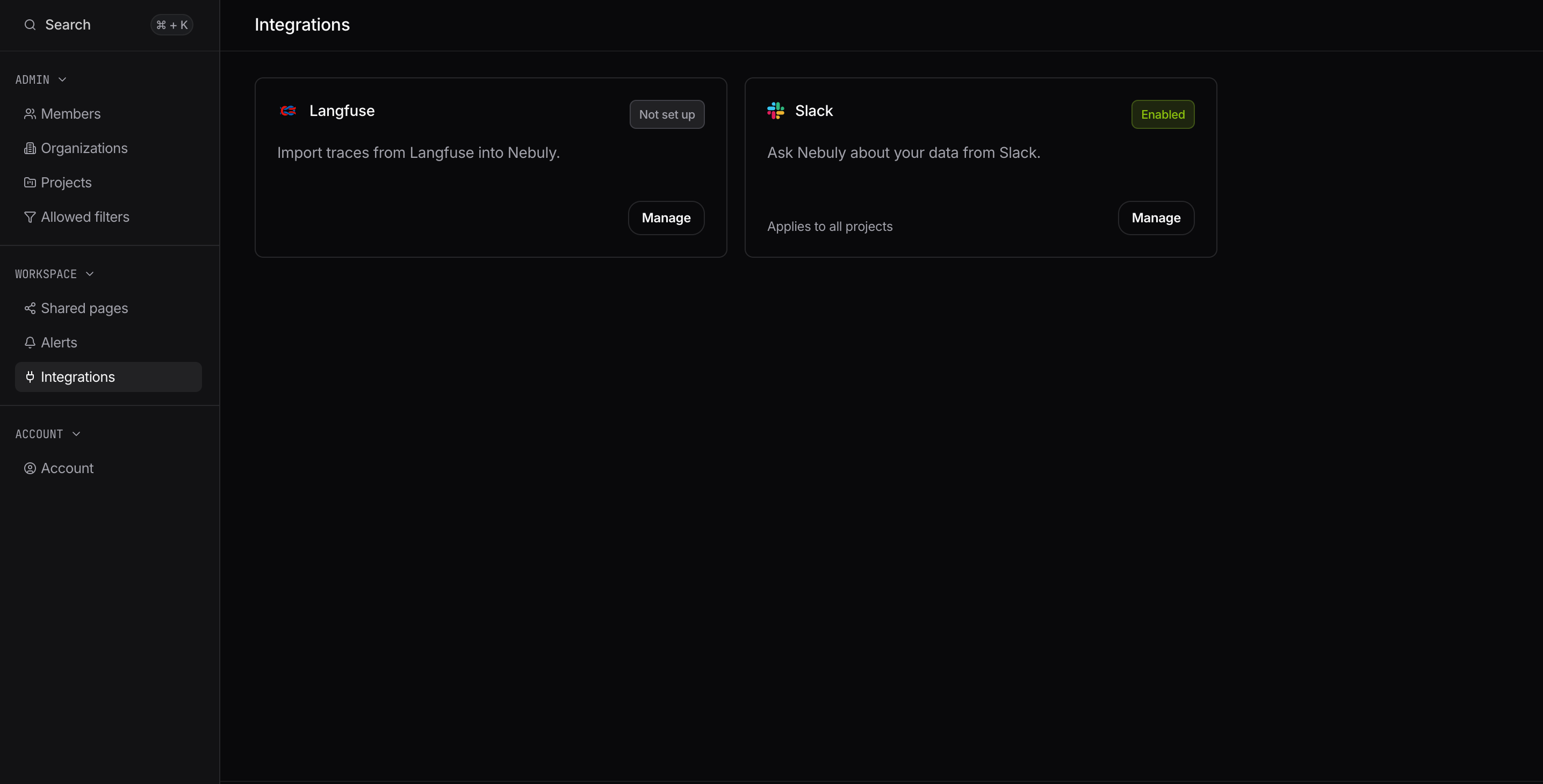
- Open Settings > Integrations in the Nebuly web app.
- On the Slack card, click Manage.
-
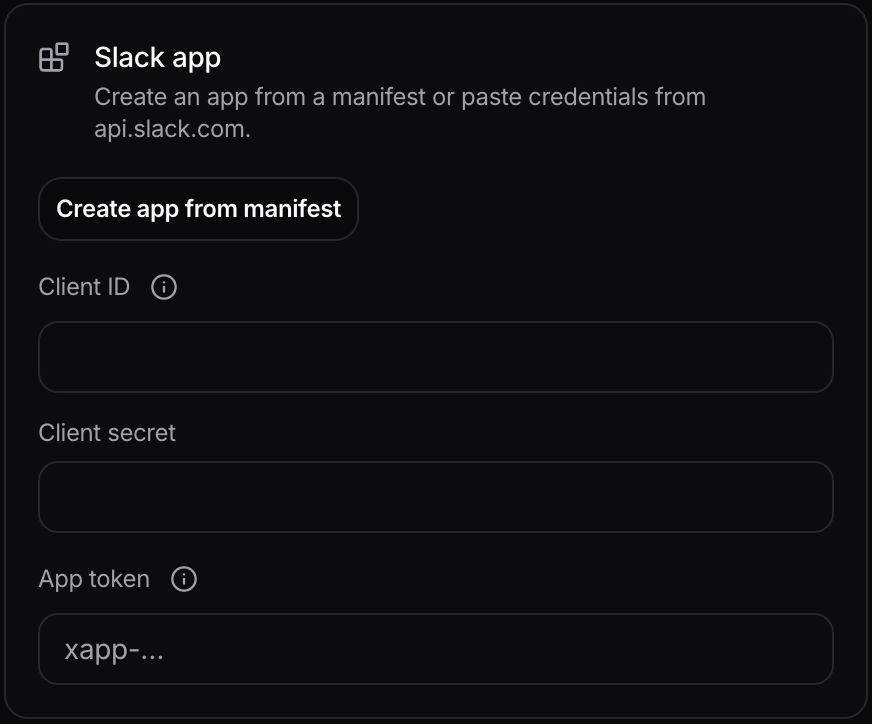
In the Slack app section, click Create app from manifest and complete the flow in the Slack API dashboard.
- Upload the app icon (see Upload the app icon). Slack manifests cannot set an icon.
- Under Basic Information > App-Level Tokens, create a token with scope
connections:write. Copy thexapp-…value. - Copy Client ID and Client Secret from Basic Information (not a bot token; install creates tokens per workspace).
- Provide the credentials to Nebuly.
- Nebuly settings
- Environment variables
Open Settings > Integrations, Manage on the Slack card, and paste Client ID, Client secret, and App token in the Slack app section.
Upload the app icon
Slack app manifests cannot set an icon, so add it by hand after creating the app:- Download the Nebuly app icon: nebuly-slack-app-icon.png (PNG, 512×512).
- In the Slack API dashboard, open your app and go to Basic Information > Display Information.
- Next to App icon, click Add App Icon and select the downloaded file.
- Click Save Changes.
Step 2: Configure the AI model and enable Slack
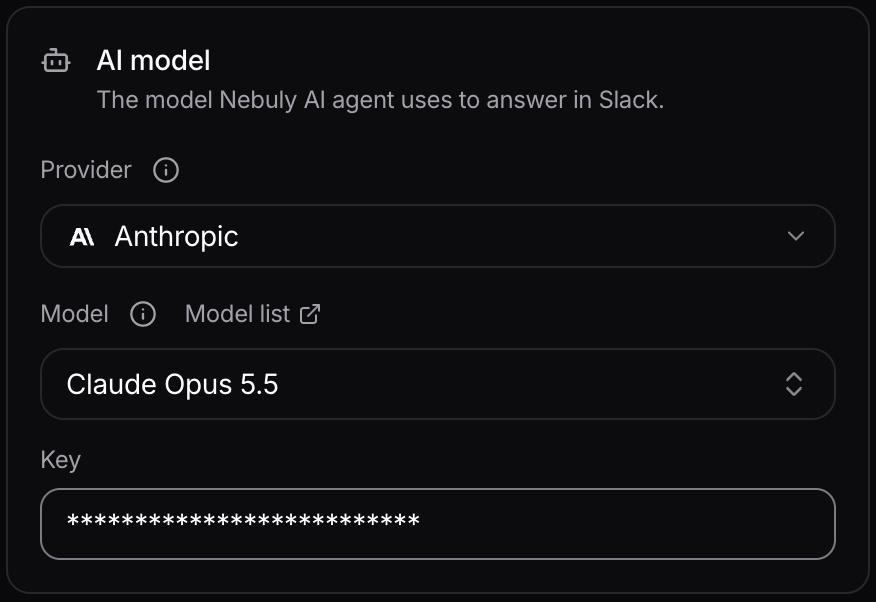
- In the same Manage drawer, open the AI model section.
- Choose Provider, then Model (select from the list or type a custom model ID), then Key.
- Click Save and enable.
Step 3: Add Nebuly AI agent to your Slack workspace
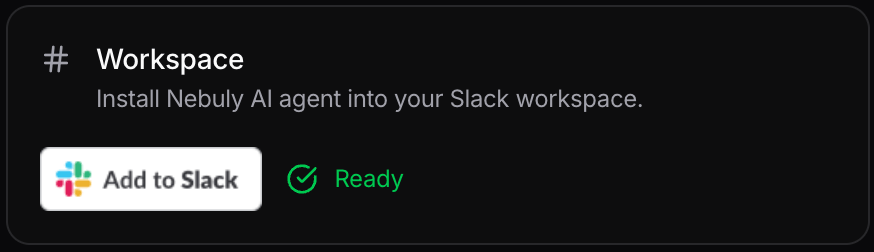
- In the Workspace section, wait until the status next to Add to Slack shows Ready, then click the button.
- A Slack workspace admin approves the install.
Step 4: Add Nebuly AI agent to Slack channels
- Open the Slack channel where you want to use Nebuly.
- Run
/invite @Nebuly AI agent, or type/and choose Add apps to this channel, then select Nebuly AI agent. - Alternatively, open a direct message with Nebuly AI agent.
Step 5: Connect your Nebuly account (each user)
- @mention Nebuly AI agent or send a direct message with a question.
- Click Connect Nebuly in Nebuly AI agent’s reply.
- Confirm the Slack workspace and Slack user shown on the confirmation page.
- Sign in with your Nebuly account.
Verify the installation
After setup, confirm the following:- Direct message: Send Nebuly AI agent a question in a DM and receive an answer.
- Channel @mention: @mention Nebuly AI agent in a channel. The answer should be visible only to you until you share it.
- Share to channel: Use Share to channel to post the answer to the thread for others.
- Open in Nebuly: Use Open in Nebuly on an answer (draft links expire after 24 hours).
- Default project: Run
/nebuly-projectto view or set the channel or DM default project.
Using Nebuly AI agent
- Ask: @mention Nebuly AI agent in a channel or send a DM. Channel answers stay private until you share them.
- AI disclosure: The first message in each new Slack thread, and the welcome message after you connect, includes a line that you are chatting with Nebuly AI agent, an AI assistant.
- Share: Post the same answer to the thread with Share to channel.
- Open in Nebuly / Open report: Open drafts or reports created from Slack in the web app.
- Reports and charts: Ask Nebuly AI agent to create or update reports and charts explicitly; it uses your Nebuly permissions.
- CSV exports: Not available in Slack. Use Open in Nebuly or export from the Nebuly app.
- Follow up: Reply in the same thread; Nebuly AI agent uses earlier messages in that thread as context.
- Feedback: Use 👍 or 👎 on answers.
Default project
On first use, you may be asked to pick an organization and project (skipped if you only have one). Use the/nebuly-project slash command:
/nebuly-project— shows the default project for this channel or DM./nebuly-project <project name>— sets the default for this channel or DM. The name must match a Nebuly project exactly (case-insensitive). Use the project name from the Nebuly UI, not internal report or export identifiers.
Manage the integration
Open Settings > Integrations, then Manage on the Slack card.- Disable: Stops Nebuly AI agent from answering. Users see that Nebuly AI agent in Slack was disabled by your Nebuly admin, with a link to Settings > Integrations. This is different from never having set up the integration.
- Save and enable: Turns the integration back on after configuration is valid.
- Discard changes: Closing the drawer with unsaved edits prompts you to discard or keep editing.
Slack permissions
The Nebuly Slack app requests these Bot Token Scopes:
The app also uses Socket Mode with an app-level token (
connections:write). im:read and im:write are not required; if your app still lists them from an older manifest, you can remove them when updating the app.
Privacy
- Each Slack user connects their own Nebuly account.
- Questions are sent to the AI model your Nebuly admin configured, using your organization’s API key.
- Nebuly does not store question text in analytics databases. For channel @mentions, private answers are stored for up to 24 hours so you can use Share to channel; they are then deleted automatically.
- Removing the app from a workspace deletes the workspace installation and its bot token. After you reinstall the app, each user must complete Connect Nebuly again.
Troubleshooting
Nebuly AI agent says no AI model is set up
- A Nebuly admin should open Settings > Integrations, configure Provider, Model, and Key, and click Save and enable.
- Confirm the integration card is not Disabled.
Nebuly AI agent says it was disabled by an admin
- A Nebuly admin should open Settings > Integrations, review settings, and click Save and enable.
- This message is intentional when an admin clicked Disable; it is not the same as missing configuration.
Add to Slack stays disabled
- Click Save and enable and wait until the status shows Ready (not Checking configuration… or Updating configuration…).
- On self-hosted, complete the Slack app and AI model sections before saving.
- Resolve any AI model check failed or Slack credential error shown next to the button or under a field in the drawer.
AI model check failed
These messages come from Nebuly verifying your provider, model, and API key. After a failed Save and enable, field-specific errors appear under the matching control; other failures appear next to Add to Slack. If a key is revoked after setup, the same text may appear in the status line when Nebuly polls configuration.Slack app errors when saving
A wrong Client secret may not stop Nebuly AI agent from answering in workspaces that were already installed (the bot uses saved bot tokens and Socket Mode). It still breaks Add to Slack and new installs until the secret is fixed.App can’t be installed in this workspace
- Use Add to Slack from your Nebuly environment or the correct install URL for your deployment (not another tenant’s link).
- On self-hosted, confirm
BOT_URLand OAuth redirect URLs match the Slack app manifest.
Connect Nebuly fails
- Sign in with the same Nebuly account you use in the web app.
- Retry in a browser; confirm you approved the correct Slack workspace and user on the confirmation page.
Nebuly AI agent does not reply in a channel
- Confirm the app is installed in the workspace and Nebuly AI agent is in the channel (
/invite @Nebuly AI agent). - Confirm you completed Connect Nebuly for your Slack user.
- Confirm the integration is Enabled, not Disabled or Needs attention.
Nebuly AI agent does not remember an earlier answer
- Use Share to channel so follow-ups in the thread include context, or repeat the relevant details in your question.
Wrong data
- Check the channel default with
/nebuly-projectand your Nebuly project permissions in the web app.
What’s next
- MCP server — connect other assistants to the same Nebuly data.
- Microsoft Copilot — publish a Copilot Studio agent with Nebuly MCP.