

New to taxonomy? Start with the overview. To create a group first, see Manage groups.
Viewing classes
Classes live inside their group. On the Taxonomy page, click the arrow next to a group to see its classes, or use Expand all to open every group at once. The number next to each group shows how many classes it has.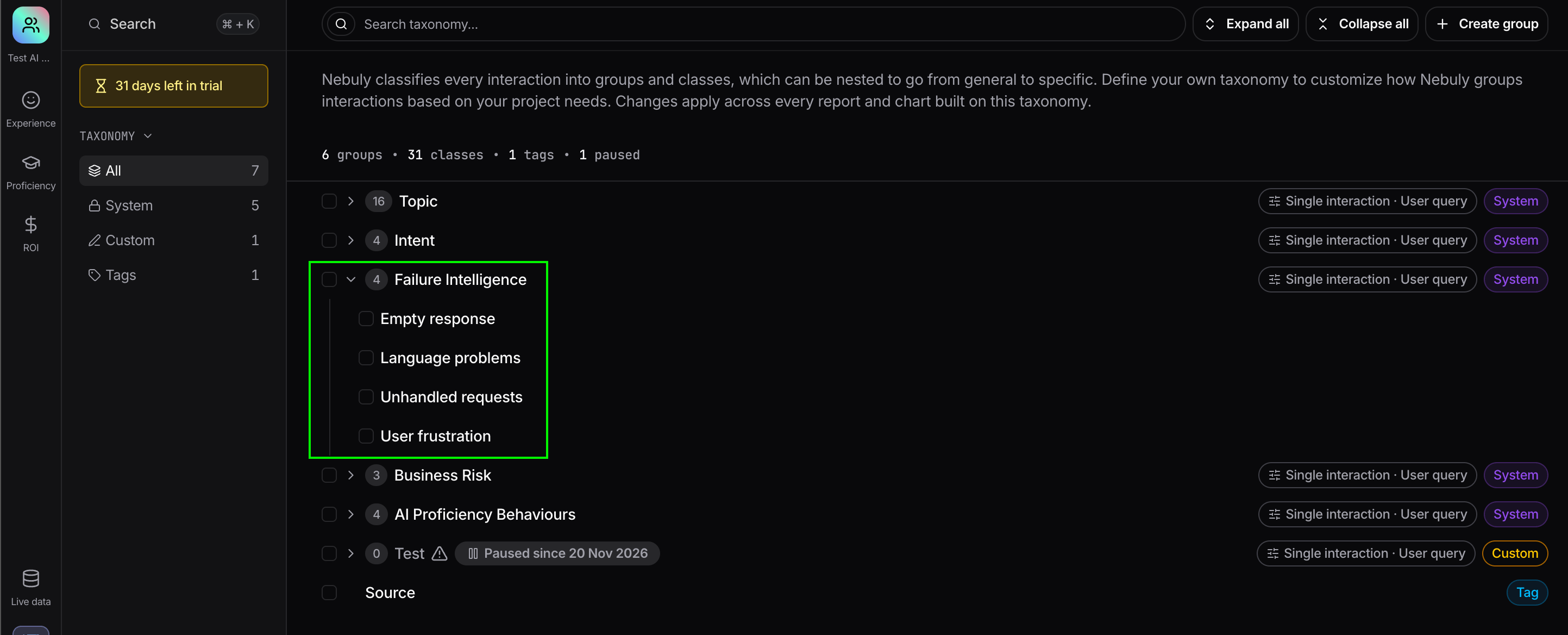
Adding a class
Add classes to a group to track exactly what matters to you: a product, a type of request, a behaviour of your assistant, or any signal you want to count. You can add classes to System and Custom groups.1
Click + on the group
On the Taxonomy page, hover over the group and click + next to its name.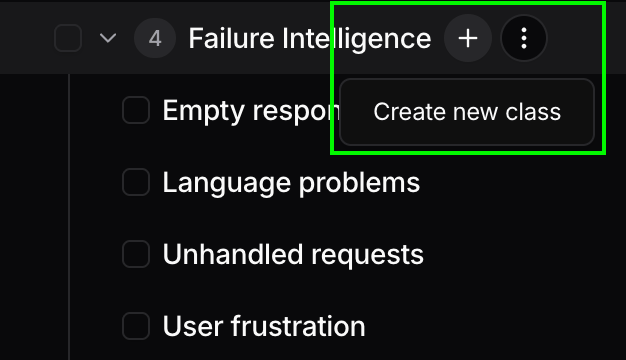
2
Choose how to define the class
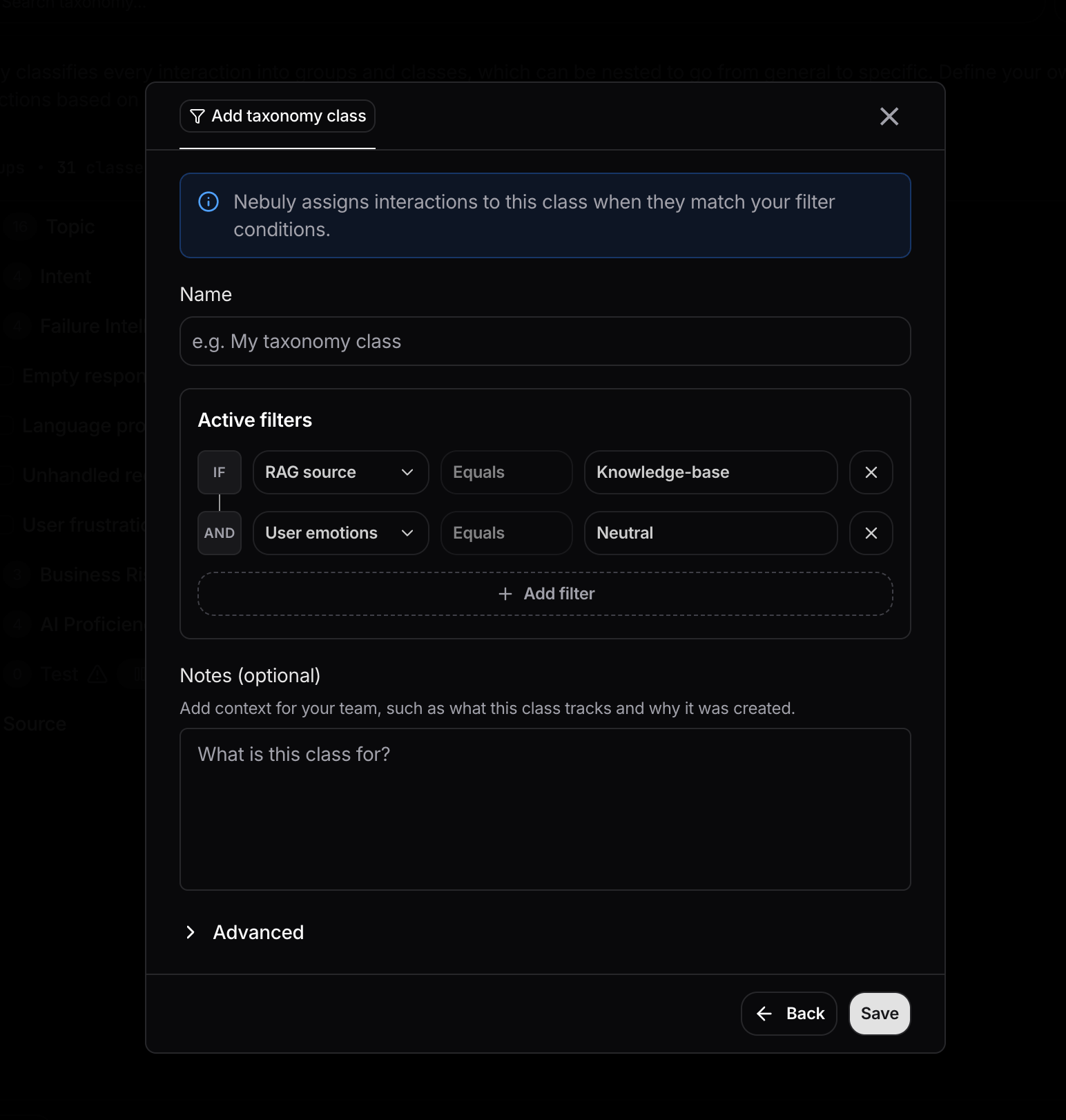
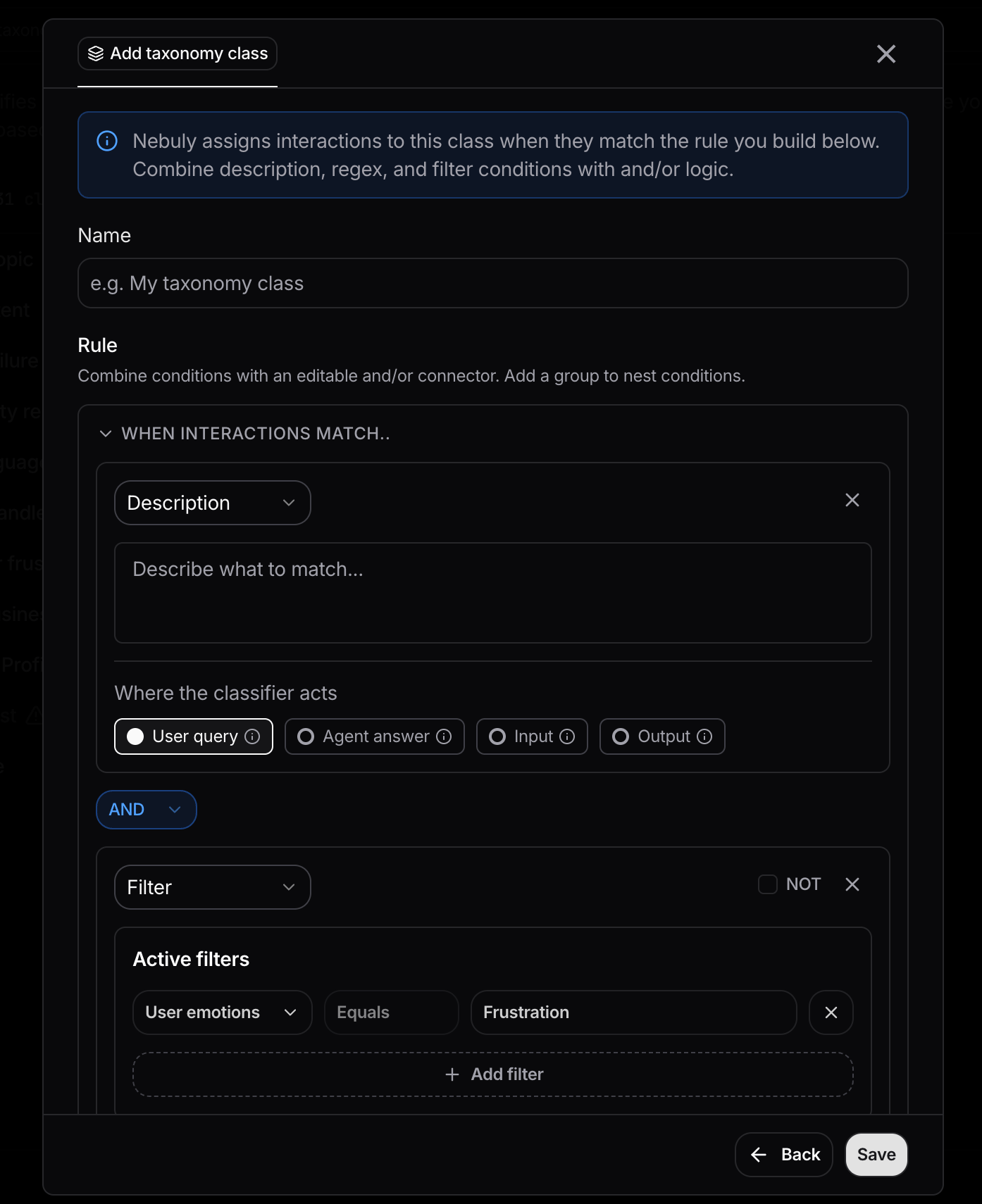
The Add taxonomy class window opens. Pick Description, Regex, Filter or Customized.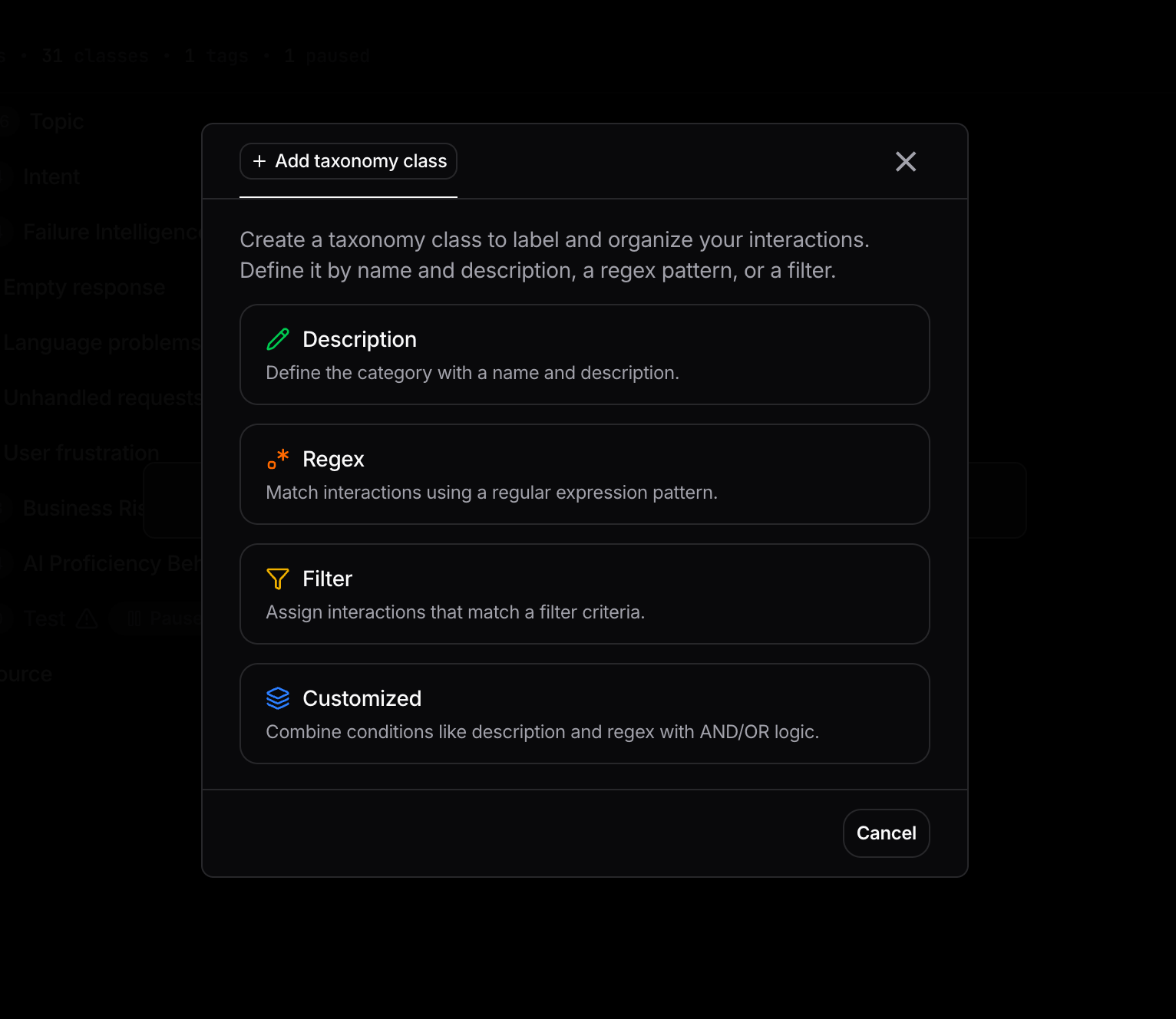
Not sure which one to pick? See Which method to select in Write good classes.
3
Fill in the details
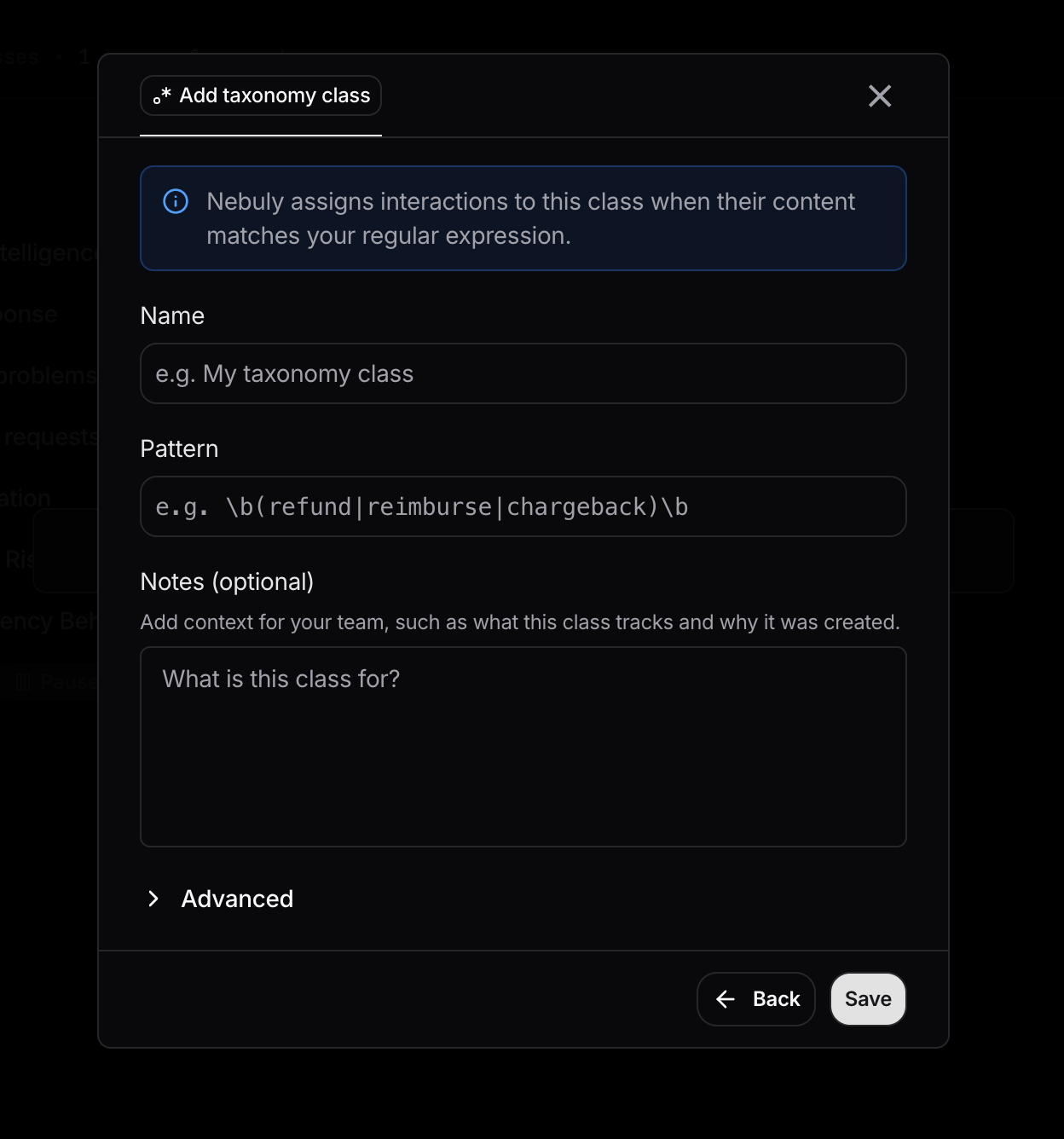
The fields depend on the method you picked. Every method starts with a Name (required): what the class contains, such as Refund requests.
- Description
- Regex
- Filter
- Customized
Nebuly reads the name and the description, and uses them to decide which interactions belong in the class. It matches by meaning, so different wordings and languages are all caught.
- Name (required): Nebuly reads it too, so make it clear and specific.
- Description (required): what belongs in the class, written in plain words. For example: Inquiries where the user asks for money back or for the status of a refund.
- Advanced (optional): which part of the conversation Nebuly reads, and whether to classify past interactions. See Advanced settings.
4
Open Advanced
At the bottom of the form, click Advanced to see two extra settings: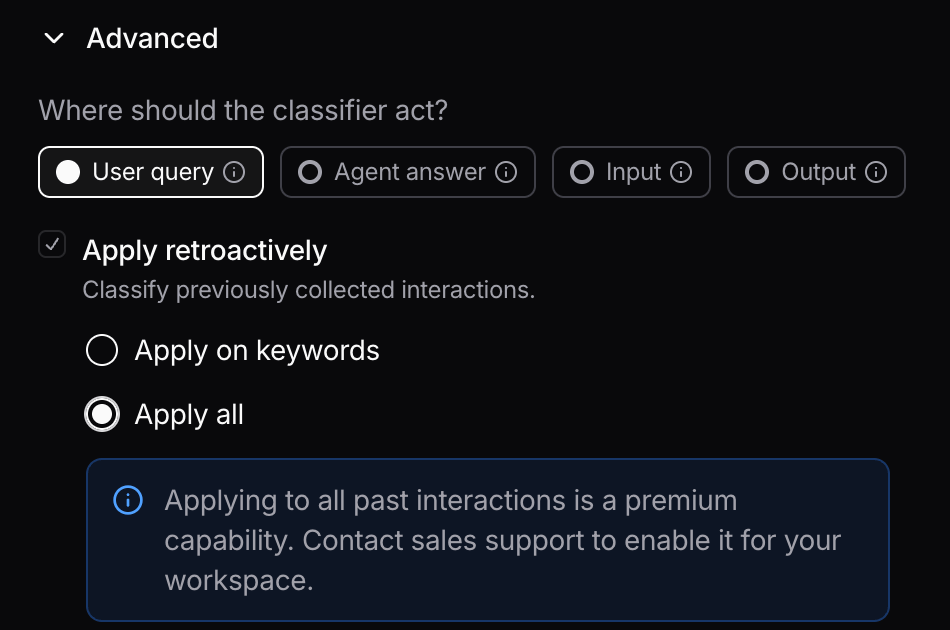
- Where the classifier acts: which part of the conversation Nebuly checks, such as the user’s message or the assistant’s reply.
- Apply retroactively: also classify interactions you collected before creating the class.
5
Click Save
The class starts filling at the next processing run. Open a few of its interactions in Live Data to check they belong there, and refine the definition if needed.
Good to know
- One class per group: each interaction gets at most one class in a group. If two classes overlap, both totals become unreliable. See Write good classes.
- Don’t create “Other” class: Nebuly already puts what fits nothing into Other.
- Self-hosted: every class with a description adds work to each processing run. See Processing cost on self-hosted deployments.
Advanced settings for classes
The Advanced section lets you fine-tune a class: which part of the conversation Nebuly reads, and whether it also classifies interactions you collected before creating the class. The defaults work for most classes. Where should the classifier act?
Summaries handle different wordings and languages for you, and Nebuly’s models work best on them. Use Input or Output only when a summary could lose an important detail.
Apply retroactively: turn it on to also classify past interactions. You can choose:
- Apply on keywords (default): pick from a searchable list of keywords found in your past interactions. Only interactions with the keywords you select are reclassified. This is the fastest and cheapest option when the class covers a specific subject.
- Apply all: reclassify all past interactions.
What actions you can do with classes
What you can change depends on the group the class belongs to.| Action | System | Custom | Tag |
|---|---|---|---|
| Add classes | Yes | Yes | No, classes come from your tag values |
| Update a class | Yes | Yes | No |
| Delete a class | Yes | Yes | No |
| Move interactions by hand | Yes, from Live Data | Yes, from Live Data | No |
Update
Click ⋮ > Update to edit a class. You can change:- Name: Nebuly uses it to classify, so renaming can change what the class catches.
- Description: what belongs in the class.
- Where the classifier acts: User query, Agent answer, Input or Output.
What happens after you change a class?
- The new definition applies from the next processing run, to new interactions only.
- Interactions that are already classified keep their current class. Nothing changes in your past reports.
- To apply the new definition to past interactions, reprocess the group.
Delete
Click ⋮ > Delete to remove a class you no longer need. At the next processing run, its interactions move to the best remaining class, or to Other.Move interactions by hand
To fix a few wrong labels without changing any definition:- Open Live Data and search for a word, such as a feature name.
- Select the interactions that are in the wrong class.
- Click Move to topic or Create user action.
How edits affect past labels
Editing a class only changes new interactions. Past interactions keep their class unless you:- delete the class: its interactions move at the next processing run
- reprocess the group: see Reprocess
- move them by hand in Live Data
FAQ
Why do classes I deleted come back?
Why do classes I deleted come back?
Their interactions still don’t fit any class. Once there are enough of them, Nebuly creates a class for them again. To stop this, add a class that catches them, such as Off-topic, or widen an existing description.
Can I control the size of Other?
Can I control the size of Other?
By default, Other has no limit. Nebuly can split it into new classes above a threshold, such as 5%, but this may create many small classes.
Can I merge two classes?
Can I merge two classes?
Not with a single action. Widen the description of the class you want to keep, delete the other one, then reprocess the group.
Does editing a class change past labels?
Does editing a class change past labels?
No, only new interactions. To update past ones, reprocess the group: up to 7 days on SaaS, 3 months on self-hosted. Or delete the class, so its interactions move at the next run.