This page covers how to manage who has access to Nebuly and what they can do once they sign in. For how users authenticate (SSO, basic authentication, and API keys for data ingestion), see Authentication. Member and role management lives in Settings → Members. Admins can invite new users, change roles, and update each member’s project access at any time. The members table supports pagination and role-based filtering, so you can quickly find users by permission level even in large workspaces.

Roles and permissions

Nebuly has four built-in roles. Role assignment is managed directly in Settings → Members.
RoleDescription
adminFull platform access. Manages members and all projects.
projectadminFull access within a subset of projects. Can manage project members, API keys, and settings.
memberCan view and interact with data within assigned projects. Cannot manage members or settings.
viewerRead-only access within assigned projects. Cannot modify any data or settings.

Changing a user’s role

To change a member’s permissions, open Settings → Members and use the Role dropdown on that member’s row. Select the new role (Viewer, Member, or Admin) and the change applies immediately. The current role is marked with a check. Only admins can change roles.
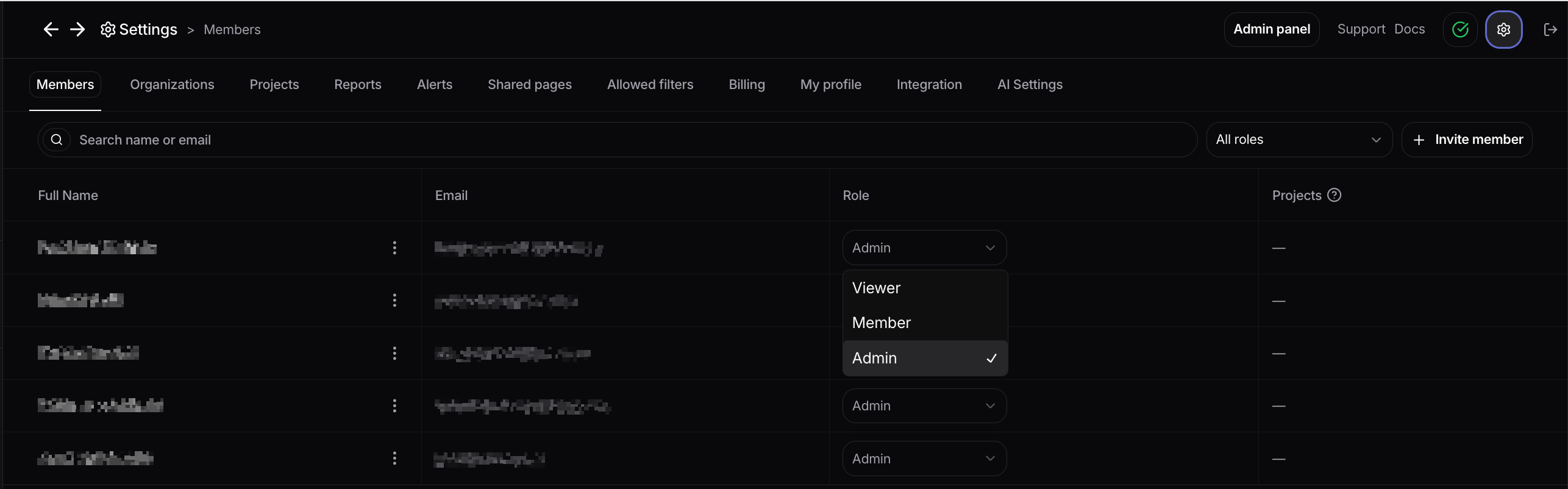
Changing a user's role in Settings → Members

Adding members manually

If you do not use SSO, you can add members manually instead of relying on your identity provider to provision them. In Settings → Members, click Invite member in the top right to open the Add new member form. Fill in the member’s details:
  • Name: the member’s full name.
  • Email: the address the invitation is sent to.
  • Role: the role granted on join (Viewer, Member, or Admin).
  • Project access: the projects the member can access. Selected projects grant access immediately after invite. Omit a project here to revoke it after the user is created.
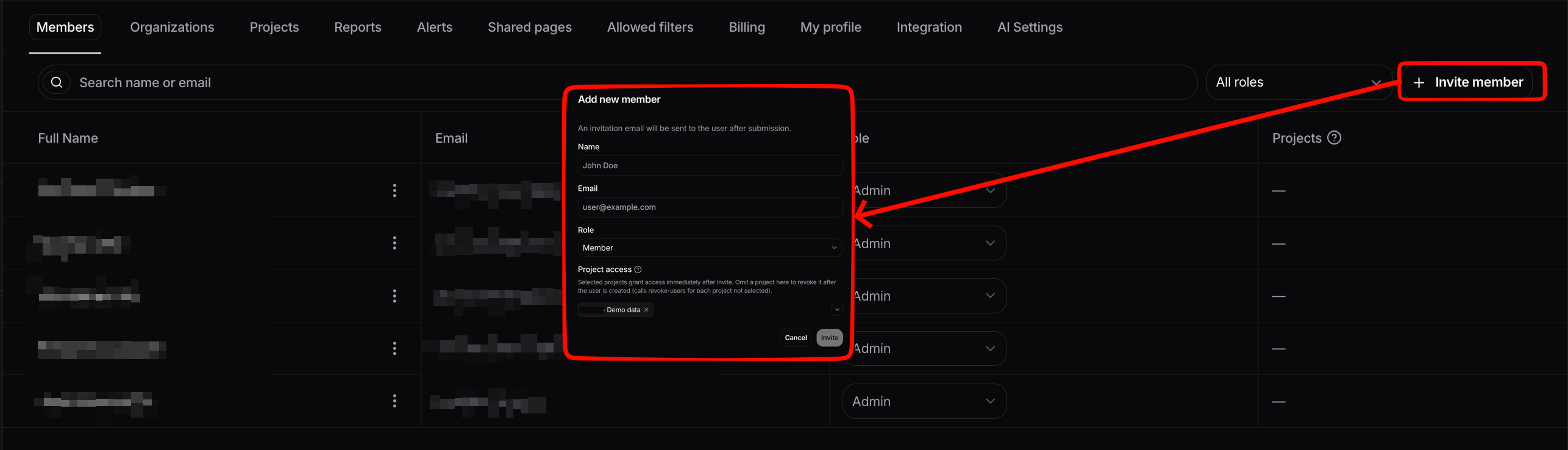
An invitation email is sent to the user after you submit, and the member appears in the table once they accept.
Adding a new member manually in Settings → Members

Managing project access

Beyond the role granted at invite time, admins can update each member’s project access at any time from Settings → Members. Use this to grant access to new projects or revoke access as responsibilities change, without altering the member’s role. For more on how projects and organizations structure access, see Projects and organizations.