

Global vs local filters
There are two levels of filtering in Nebuly:- Global filters live in the top bar and apply across the whole platform. They stay active as you move between pages, so every view reflects the same selection until you change it. This is the right level when you are investigating one segment across reports and Live Data at the same time. For where the global filter bar sits in the interface, see Navigating Nebuly.
- Local filters apply to a single chart or list view only. Use them when you want to narrow one chart or table without changing what you see everywhere else.
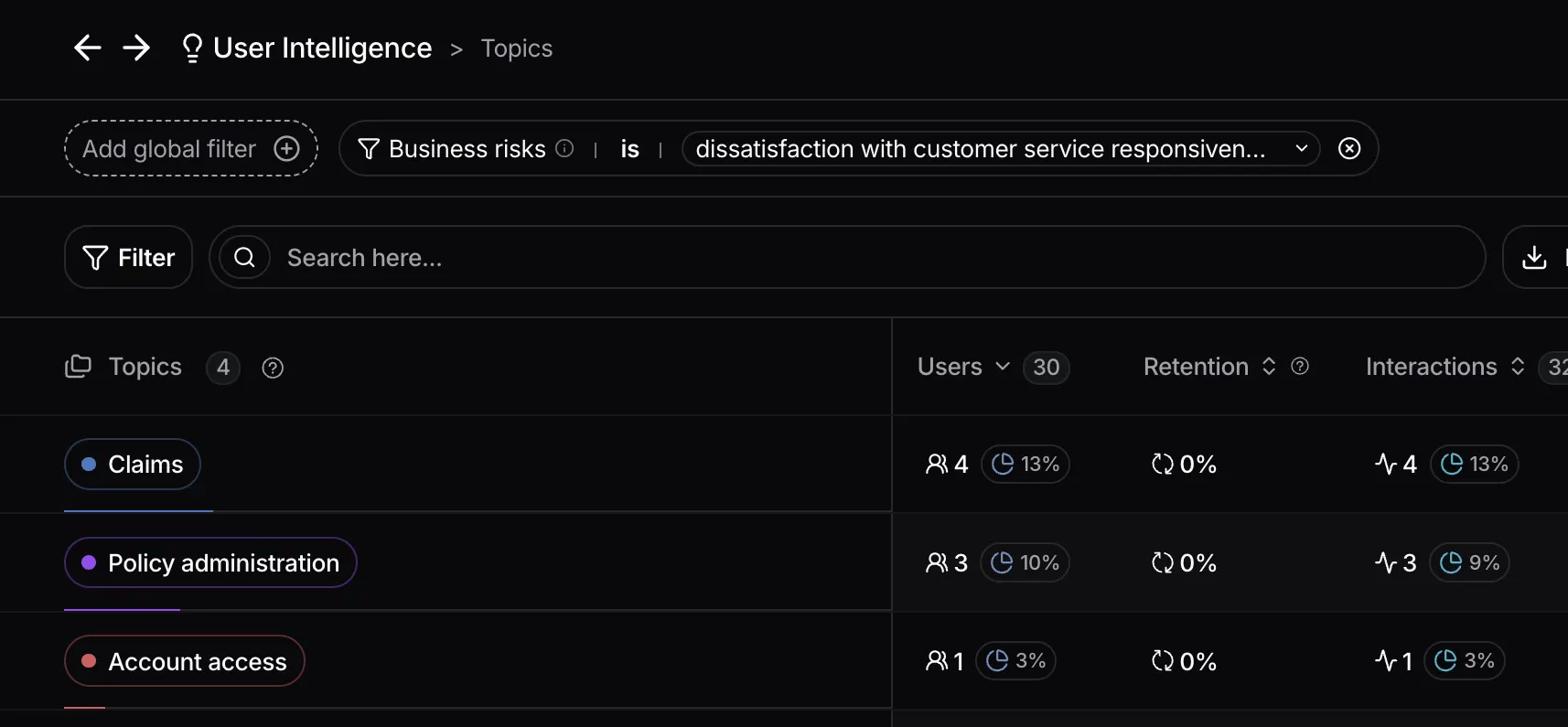
Global filters persist across every view in your session
Filtering reports and lists
All views in Nebuly can be filtered by any attribute on an interaction or conversation. This includes built-in fields (topics, intents, sentiment, error type, business risks, user feedback) and every custom tag you sent at ingestion. Nebuly supports 100+ filter options. Common examples include Topic (the main theme of the interaction), Action (the task the user is trying to do), Sentiment, Language, User (a specific user ID), RAG Source, Frustration reason, and any custom tag you sent at ingestion. For the definitions behind these fields, see Nebuly Data Types. Custom tags are configured at ingestion, see Enrichment and the importance of tagging.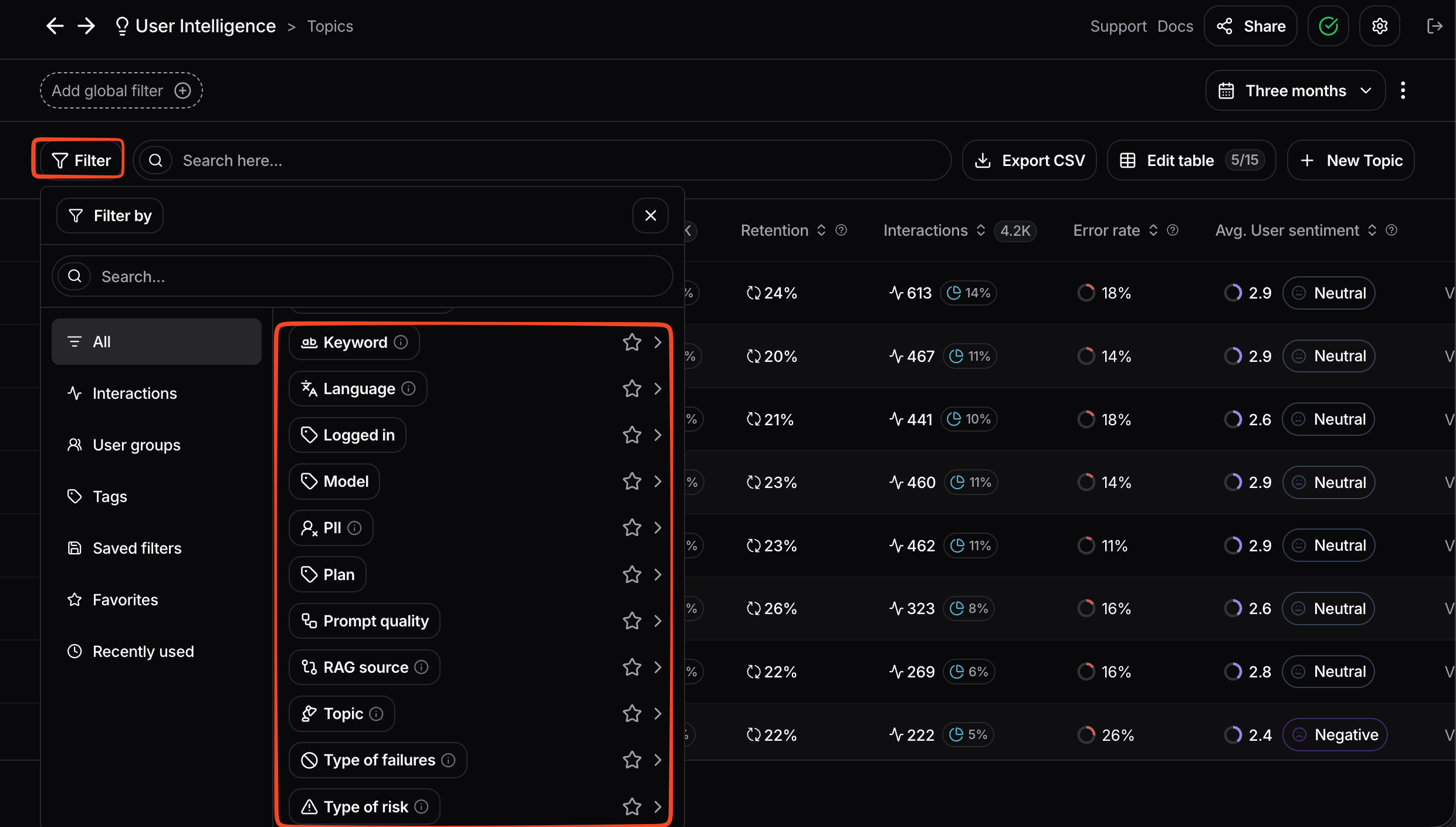
Filtering reports and lists by any interaction or conversation attribute
Keyword search
On each list view, a search bar is available to quickly and easily search for keywords in large datasets, like the interactions view seen below.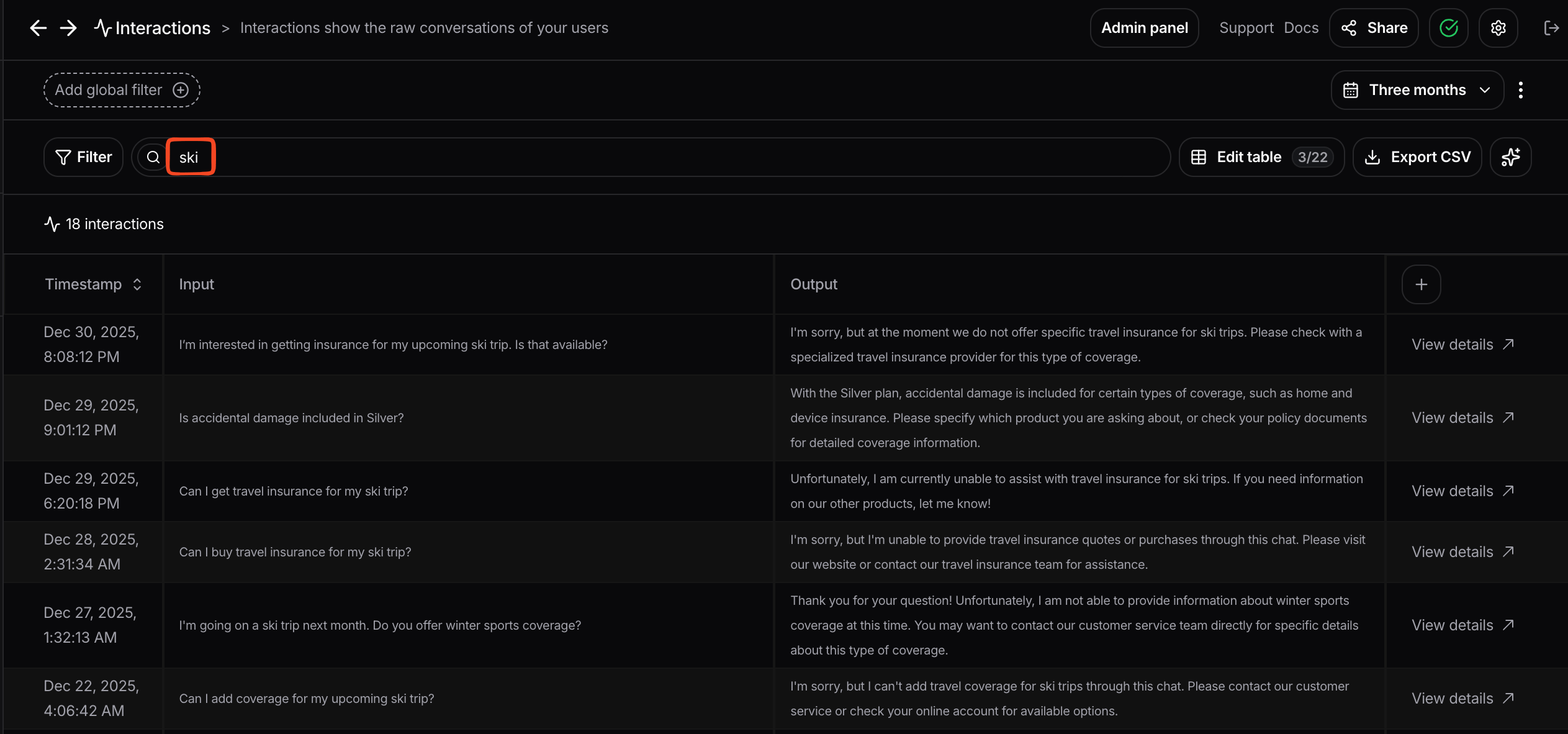
Keyword search on a list view
Saved Filters
Often-used combinations of filters can be saved for reuse across future sessions. To save a combination, click Save filters in the filter selection panel and give the saved filter a descriptive name. You can then apply the saved filter at any time from the Saved filters section of the filter selection panel. The Saved filters list is shared across all users in the project, which makes it a lightweight way to standardize how your team slices data.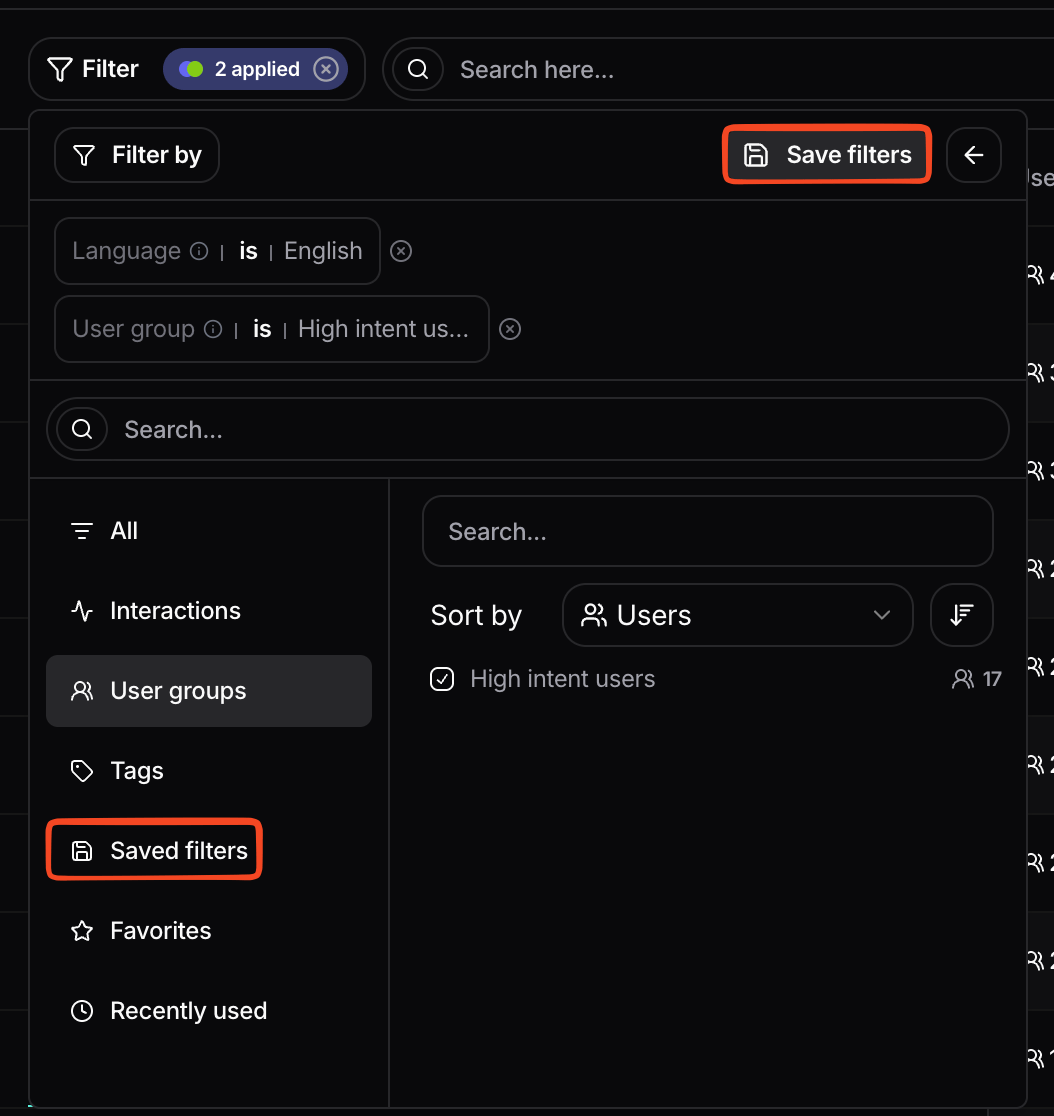
Saved filters, shared across the project
Favorites
To make your most-used filtering fields easier to find, mark them as favorites by clicking the star next to a field. Your starred fields then appear at the top of the filter selection panel under Favorites. This list is individual to each user: each teammate maintains their own favorites without affecting anyone else.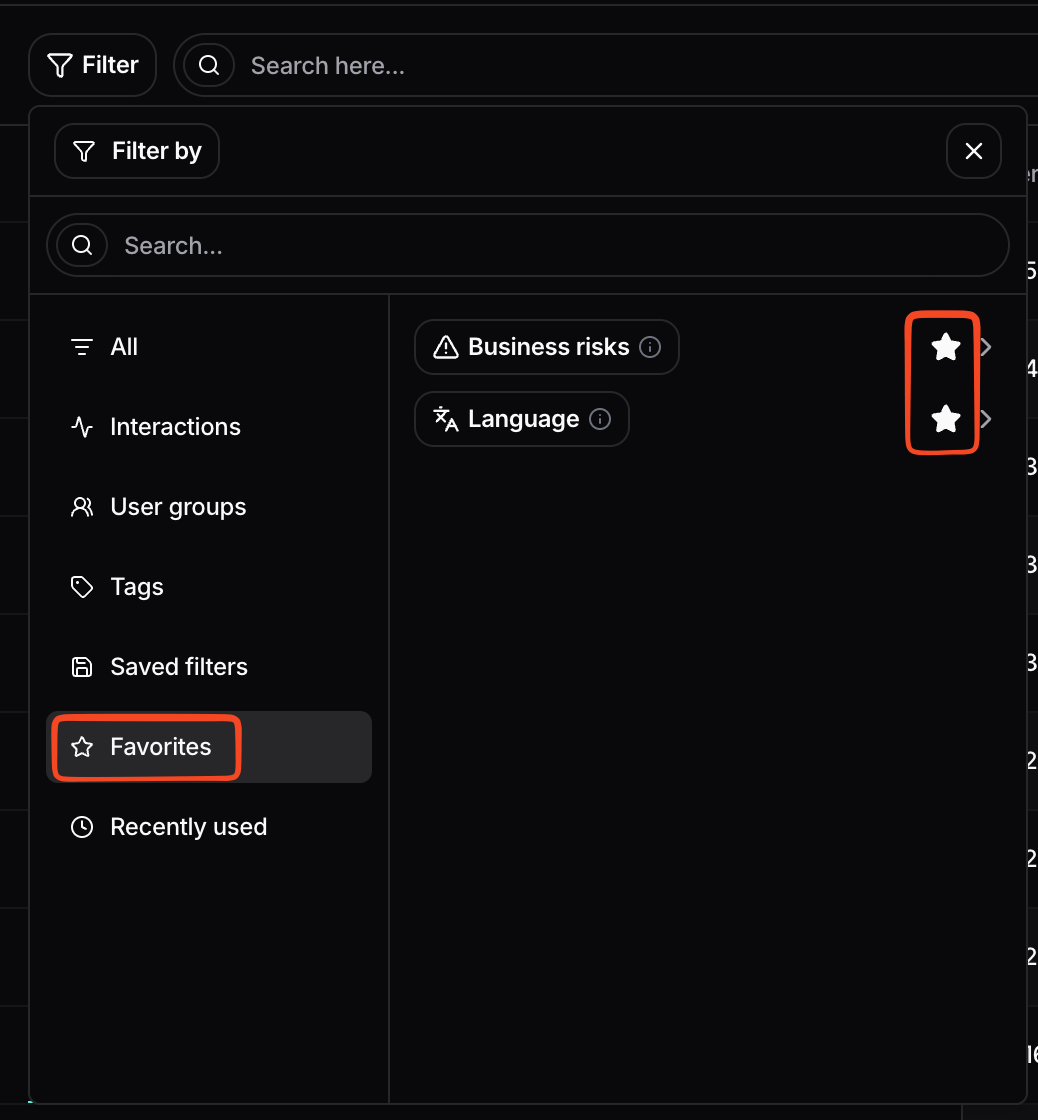
Favorite filter fields, individual to each user