Viewing and browsing
On the Taxonomy page you can:- See all groups grouped by type (System, Tag, Custom).
- Search across groups and classes to find a specific one quickly.
- Read what each group represents from its definition.
Creating a custom group
Click Create group and choose how you want to define the taxonomy:Adding new taxonomy groups increases your recurring processing costs, since each additional taxonomy requires more classifications to be computed during every processing run.
Automatic class generation
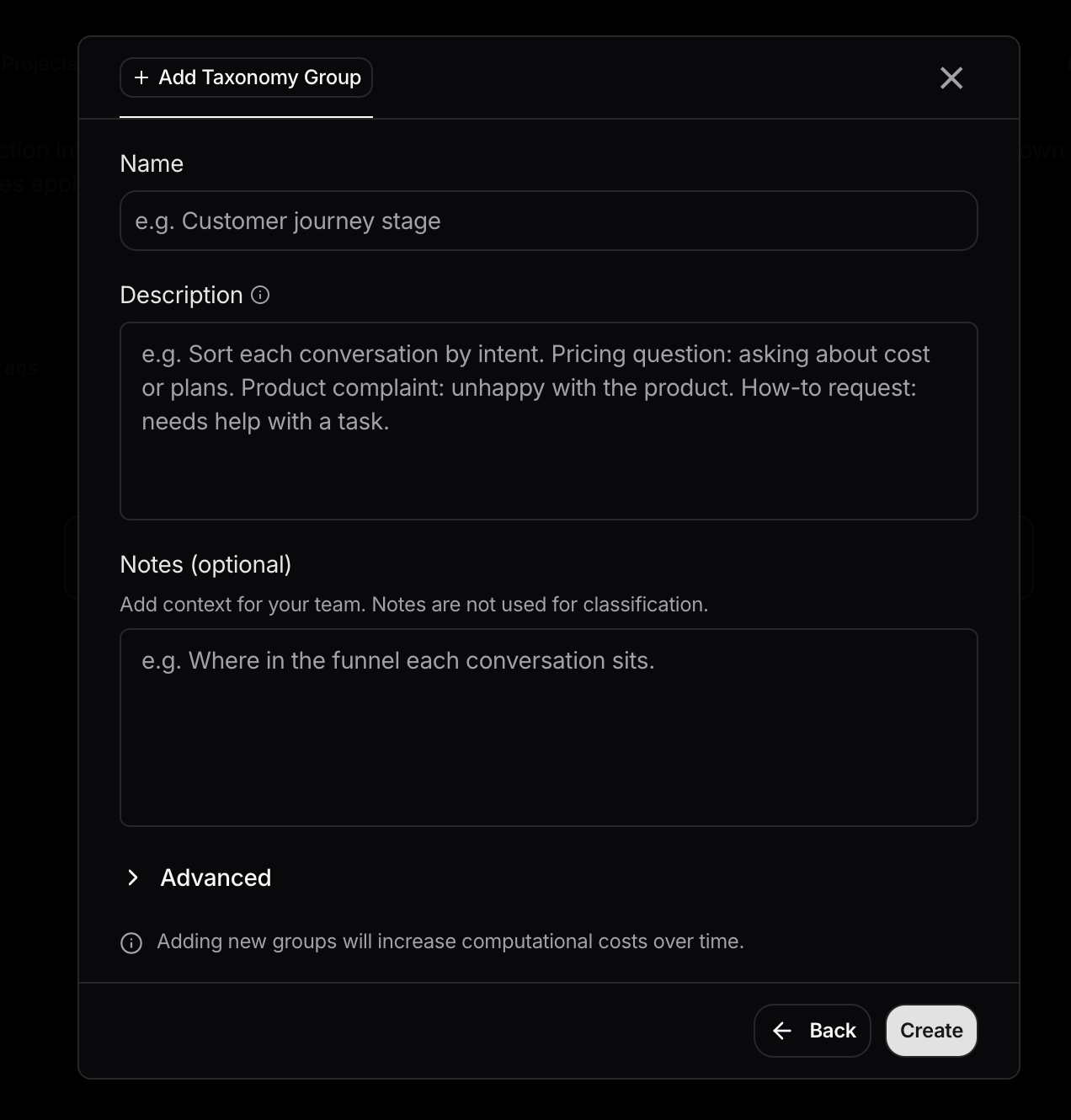
Use Automatic class generation when you know what you want to analyze, but want Nebuly to discover the relevant classes from your interactions. To create the group, provide:- Group name: the name of the taxonomy group.
- Description: required. Explain what the group should classify and how interactions should be organized. Nebuly uses this description to generate the classes.
- Notes: optional. Add context for your team. Notes do not affect classification.
Group interactions by the health condition the user is talking about, like heart problems, and stress-related problems.
Nebuly might group together interactions in the following way:
- Heart problems
- Chest pain
- High blood pressure
- Stress-related problems
- Work stress
- Anxiety
Advanced settings
Advanced settings are available only for automatically generated groups. Use them to choose what part of the interaction Nebuly analyzes and whether the taxonomy should also be applied to historical data. Under Classifier target, choose:- User query: classify based on what the user asks or talks about.
- Agent answer: classify based on the response produced by the AI agent.
For self-hosted deployments, taxonomy groups can be applied retroactively to up to 3 months of historical interactions. Reprocessing historical data uses additional compute, so processing time and cost depend on the number of interactions selected.
Manual class setup
Use Manual class setup when you already know which classes the taxonomy should contain and want to define them yourself. Create the group first, then add classes using one of the methods below. This is useful when you already have a clear taxonomy, such as a fixed list of products, workflows, departments, or support categories.Adding classes manually
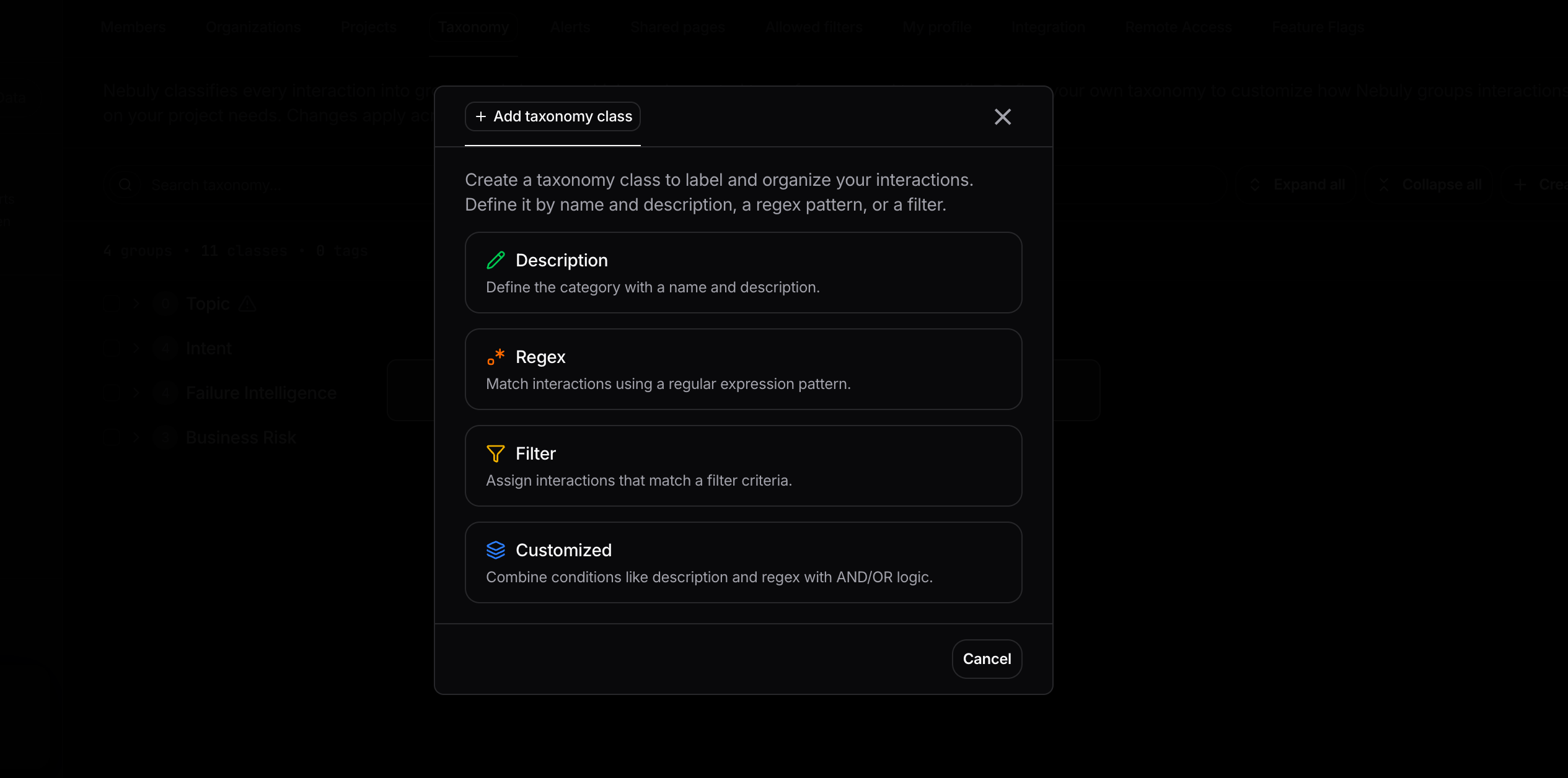
You can create a class in four ways:- From a description: provide a class name and a detailed description of what it should capture. Nebuly uses the description as the classifier instruction and automatically assigns matching interactions to the class.
- From regex: define a regular expression to match interactions based on specific text patterns. Use this when the classification can be expressed with a precise rule.
- From filters: build the class using existing Nebuly filters. For example, you could create a class containing interactions where User emotion = Frustrated. Filter-based classes are deterministic: interactions are included when they match the selected filters.
- Customized: combine description, regex, and filter conditions using AND and OR operators. Conditions can also be nested, allowing you to build more specific classification rules.
User emotion = Frustrated AND (description matches a billing issue OR regex matches "refund|charge")
This gives you more control when a single description, regex, or filter is not enough to define the class.
Advanced settings
For classifier-based conditions, open Advanced to choose which part of the interaction Nebuly should analyze:- User query: the message sent by the user.
- Agent answer: the response returned by the AI agent.
- Full input: the complete input sent to the model, including system instructions and context.
- Full output: the raw model output before any post-processing.
Retroactive classification must be enabled for your deployment. Contact Sales if you want to apply a new class to historical interactions.
Managing groups and classes
As your understanding of the data evolves, you can keep the taxonomy clean:- Rename a class or a group. For Tag and System groups, you can rename them to a readable display name without breaking the underlying mapping.
- Merge classes that overlap into a single class.
- Delete classes you no longer need, or delete a Custom group entirely. System groups can’t be deleted, but their classes can be renamed, merged, and deleted. Tag group classes keep updating automatically as new tag values arrive.