

User group fields
By default, the table includes the following fields:- User group: the name of the user group.
- Refreshed at: when the group membership was last updated.
- Created at: when the user group was created.
- Number of users: the total number of users currently assigned to the group.
User Groups Actions
Select a user group to open the Users page filtered to that group. From there, you can explore the users that belong to the group and continue investigating their interactions and conversations.Create a user group
Click Create user group to create a dynamic segment based on user activity or conversation behavior.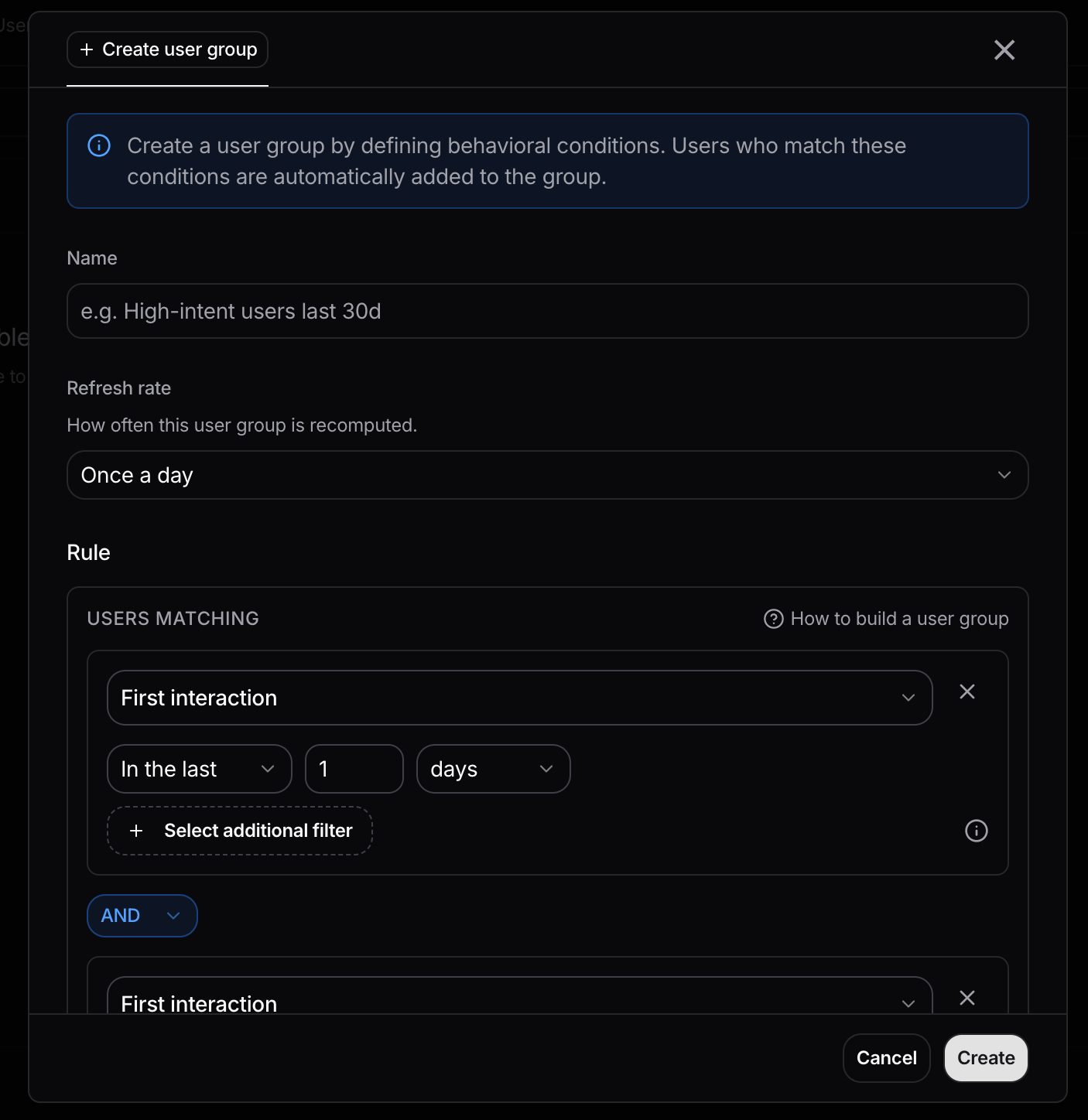
Available conditions
Use these conditions to define which users should belong to a group.- First or last interaction: group users based on when they first or most recently interacted with your AI, for example users whose last interaction was within the past 2 days. You can also restrict the condition to a specific topic. Useful for identifying new users, recently active users, or users who recently engaged with a particular use case.
- Interaction tag: group users who have interactions with a specific tag. Tags can represent attributes such as team, market, customer segment, or any other metadata you send to Nebuly. Read more about tags. Useful for creating groups based on business attributes or custom metadata, such as users from the same department or customer tier.
- Number of interactions: group users based on how many interactions they had within a period or within the same conversation. You can also apply a rolling time window, for example users with more than 20 interactions in the last 10 days. Useful for identifying highly engaged users, occasional users, or users having unusually long exchanges with the AI.
- Number of conversations: group users based on how many conversations they started. You can apply a rolling time window, for example users with more than 5 conversations in the last 10 days. Useful for tracking frequent users, comparing different levels of adoption, or finding users who have recently increased their usage.
- Active periods: group users based on how consistently they were active during a period. A user counts as active when they have at least one interaction. For example, you can group users who were active on at least 6 days during the last week. Useful for identifying habitual users and distinguishing regular adoption from occasional usage.
- Conversation length: group users based on the duration of their conversations, for example conversations lasting more than 6 hours. You can also apply a rolling time window, such as considering only conversations from the last 10 days. Useful for identifying users with long-running workflows or extended conversations, which can help distinguish quick questions from more involved AI usage.
Combine conditions
Combine conditions with AND to create more specific groups. For example, you can create a group of users who:- Had more than 10 conversations in the last 30 days
- Have an Escalated tag on their last interaction
System user groups
Nebuly also creates and manages some user groups automatically. For AI Proficiency, users are assigned to one of four proficiency groups based on their AI Proficiency score:- Expert: 85 and above
- Practitioner: 65 to 84
- Beginner: 40 to 64
- Novice: below 40
Refresh user groups
Choose how often Nebuly should automatically recalculate user group membership:- Daily
- Weekly
- Monthly
Manage a user group
Open the Actions menu next to a user group to manage it. The available actions are:- Rename: change the name of the user group.
- Edit: modify the group’s filter definition to change which users belong to it.
- Refresh: recalculate the group’s membership using its current filter definition, ensuring it reflects the latest user data.
- Delete: permanently remove the user group from Nebuly. Deleting a user group does not delete the users or their associated interactions and conversations.